Advanced Settings
After connecting to the Source and Target datasets, you will come to the Configure Validation screen.
If you selected the Quick Start (Validation Pair) scope with any of the built-in validation types—Vector, Fast Record, Full Record, Key or Interval Validation—you must enter the fully-qualified Source Table Name and Target Table Name.
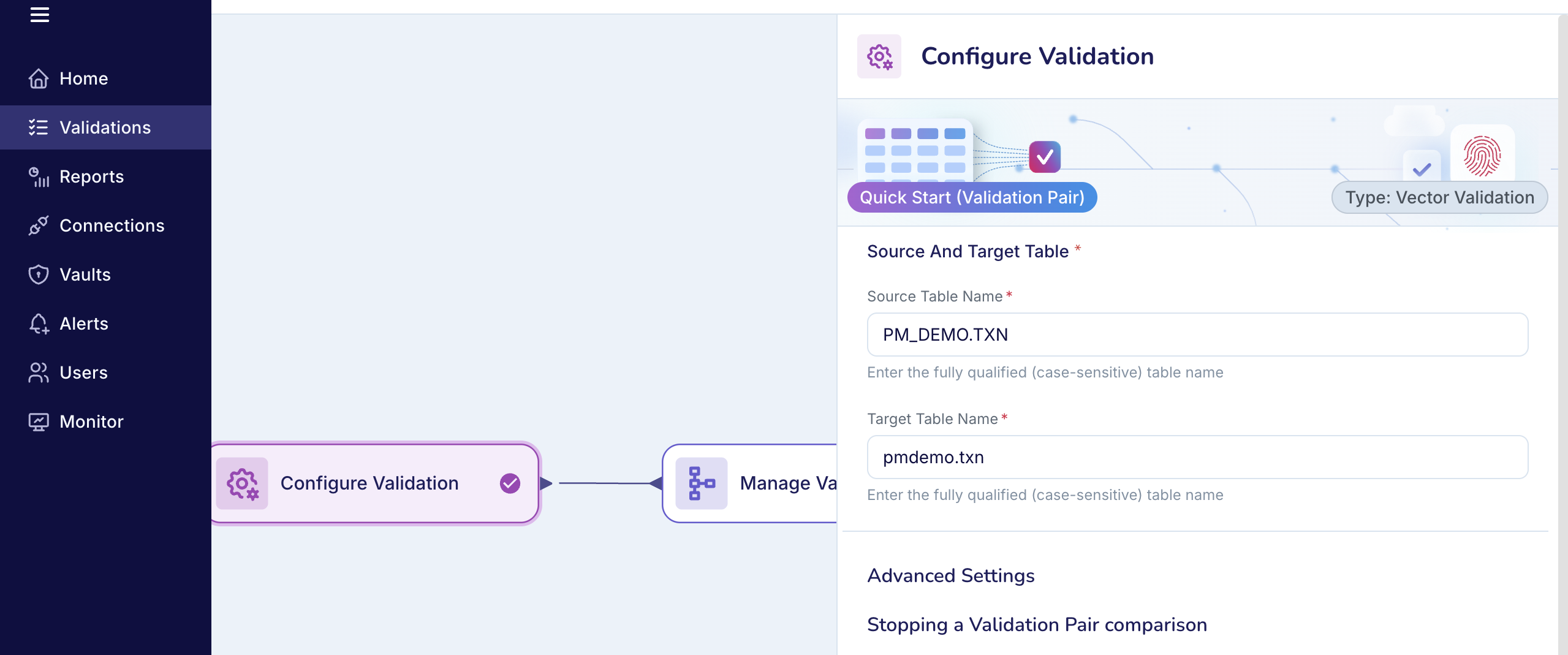
If you selected the Interval Validation method, whether using Quick Start (Validation Pair) or a Validation Set, you must configure the time ranges for your validation. See Configuring Interval Validation.
If you selected the Quick Start (Validation Pair) scope with the Custom Validation method, you must enter the SQL queries that Validata will apply on the Source and Target tables. See Configuring Custom Validation.
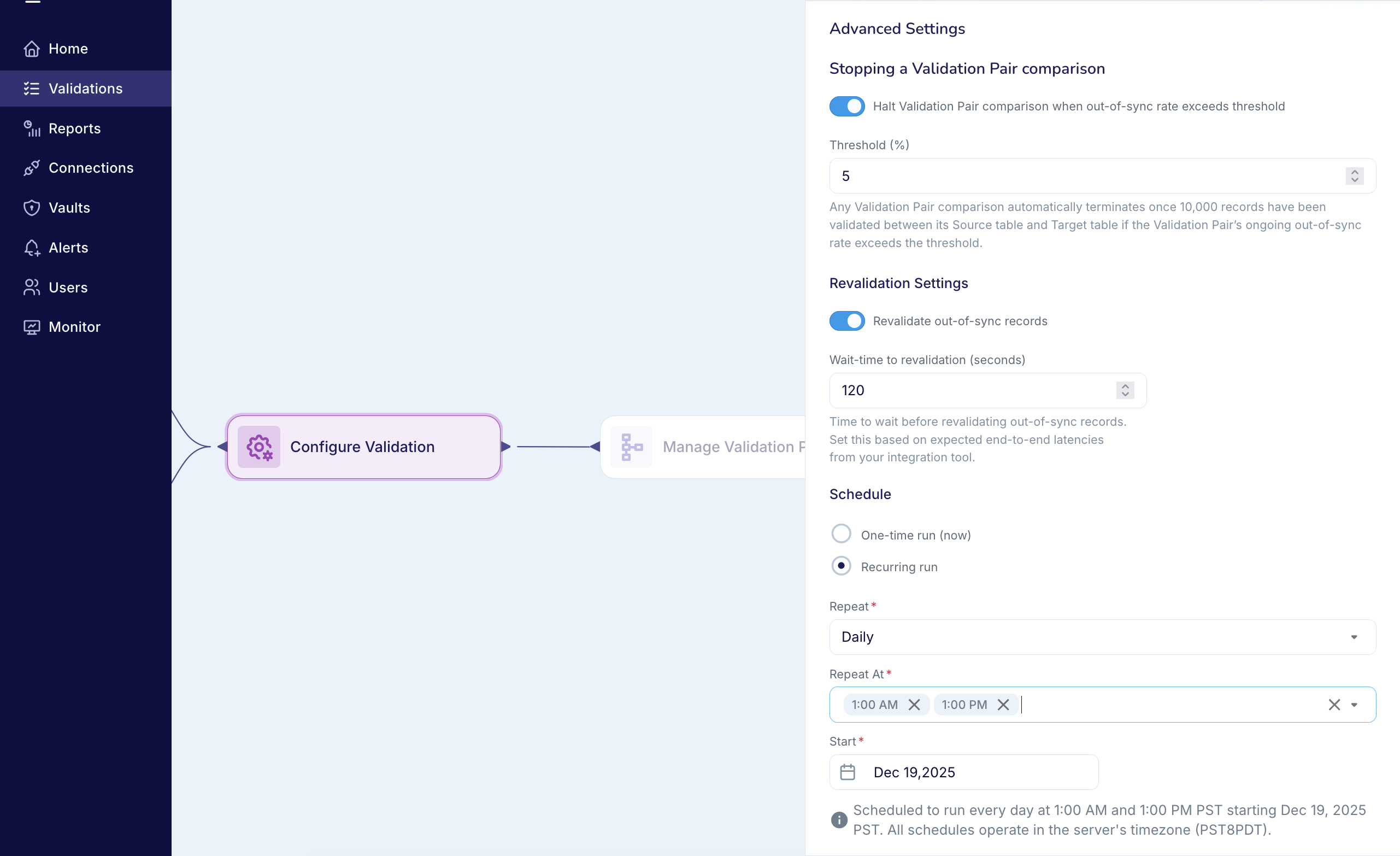
You must also configure the Advanced Settings for the Validation configuration: Stopping a Validation Pair comparison early, Revalidation, and the Validation Schedule.
These advanced settings apply regardless of the Validation scope or method. You can update them at any time, and the changes will take effect in the next Validation Run.
After entering all required settings on the Configure Validation screen, click Verify and Save to proceed. Validata will validate your inputs and then create the new Validation.
Stopping a Validation Pair comparison early
Validata provides an optional safeguard that can halt a Validation Pair comparison early when the OUT-OF-SYNC rate becomes unacceptably high. This guardrail helps you avoid unnecessary processing when the Source and Target tables appear significantly misaligned—for example, due to incorrect mappings or significant divergence in the Target data, possibly caused by delayed or failed replication.
When enabled, the guardrail is applied to every Validation Pair in the Validation Run, but it is evaluated separately for each Pair. If one Validation Pair is halted early, the remaining Pairs continue normally and are not affected by the halt.
Example
Assume that you have configured a Validation with the following settings:
Minimum Records Processed = 10,000: Validata must compare at least 10,000 non-duplicate Source–Target records for a Validation Pair before it begins evaluating whether the comparison should be halted for that Pair.
Halt Threshold Percentage = 10%: After the initial 10,000 non-duplicate records are processed, Validata will automatically halt the comparison of a Validation Pair if the ongoing
OUT-OF-SYNCrate reaches 10% or higher.
Validata will apply these settings as shown in the table below, which illustrates how the ongoing comparison results are evaluated against the guardrail conditions for this Validation Pair.

Note: These calculations are reset at the start of every Validation Run.
Setup parameters

The comparison of a Validation Pair specified in the Validation configuration is halted automatically when all of the following conditions are met:
Auto-Termination Enabled: You have turned on the option to halt a Validation Pair comparison based on its
OUT-OF-SYNCrate. You can disable or enable this guardrail at any time.Minimum Records Processed: Validata has compared the required minimum number of Source–Target records before evaluating and potentially activating the guardrail.
In the screenshot above, the Minimum Records Processed is set to 10,000. This value applies to all Validations.
You can change it by updating the value of
ValidationPairComparisonHaltMinimumRecordsin thestartUp.propertiesfile and restarting the Validata server. The updated value will apply to all subsequent Validations.Halt Threshold Percentage: After the minimum count is reached, the ongoing
OUT-OF-SYNCrate meets or exceeds your configured threshold.The Halt Threshold Percentage is configured per-Validation and can be modified at any time. In the screenshot above, you have set the value to 5% for this Validation Configuration. This value applies to all Validations Pair comparisons in this Validation.
You can update the baseline Halt Threshold Percentage by updating the value of
ValidationPairComparisonHaltThresholdPercentagein the startUp.properties file and restarting the Validata server. All validations will now start with the new baseline value, but you can change the value for an individual Validation.
Operational considerations
We recommend enabling this feature at all times to prevent runaway processing when the
OUT-OF-SYNCrate exceeds your expectations and to avoid storing details of unnecessarily large numbers ofOUT-OF-SYNCrecords in the Validata Historian. Accumulating large volumes ofOUT-OF-SYNCdetails can rapidly consume the storage space allocated to the Historian.As a starting point, set the Halt Threshold Percentage between 5% and 10%, and then gradually lower it to 5% or below as your Target dataset begins to align more closely with the Source
Revalidation Settings
Revalidation is an optional, two-phase validation flow that helps account for replication latency in continuously updated data pipelines. After the initial comparison, Validata waits for a configurable interval before performing a second pass (Revalidation). This pause gives delayed Source updates time to reach the Target. Validata then rechecks only the records previously marked OUT-OF-SYNC to validate whether the discrepancies have resolved through expected replication lag, thereby distinguishing temporary delays from true, persistent data mismatches.
When enabled, the Revalidation Settings apply to all Validation Pair comparisons in the Validation Run.
Setup parameters

Revalidation runs only when both of the following conditions are met:
Revalidation Enabled: You have turned on the option to perform a second validation phase. If this setting is disabled, Validata completes only the initial comparison.
Wait-time to Revalidation: Validata waits for the interval you specify before rechecking the records marked as
OUT-OF-SYNCin the first phase of validation. Once this wait time elapses, Validata revalidates those records to determine whether the discrepancies have resolved or should remain classified asOUT-OF-SYNC.
Operational considerations
Revalidation works with all built-in validation methods—Vector, Fast Record, Full Record, Key, and Interval—but is not supported for Custom Validation.
We recommend setting the
Wait-time to Revalidationto at least 1.5 times the maximum expected end-to-end replication latency.If you are validating two static datasets—datasets that are not being updated during the Validation—you can disable Revalidation.
Reporting
If you enable Revalidation, the Validation Pair Report presents comparison metrics at two distinct points: the end of Phase 1 and the conclusion of the Revalidation phase. This allows you to see how many discrepancies identified in the first phase of validation were resolved after accounting for the expected replication latency.
Validation Schedule
You can configure the Validation to run either as a one-time execution or on a recurring schedule:
One-Time Run (Run Now): Use this option for initial testing or for immediate comparisons to evaluate configuration and system load. You can trigger additional one-time runs from the Validation homepage at any time.
Recurring Run: Set up hourly, daily, or weekly schedules that match your business processes and the load patterns of your Source and Target systems. You can still initiate one-time runs from the Validation homepage between scheduled executions.
Setup parameters
If you want the Validation to run a single time, or you plan to run it on demand instead of a recurring schedule, select One-Time Run. Validata will start the run as soon as you finish and save the configuration.
If you want the Validation to run on a schedule, select Recurring run, and then select the frequency: Weekly, Daily, or Hourly.
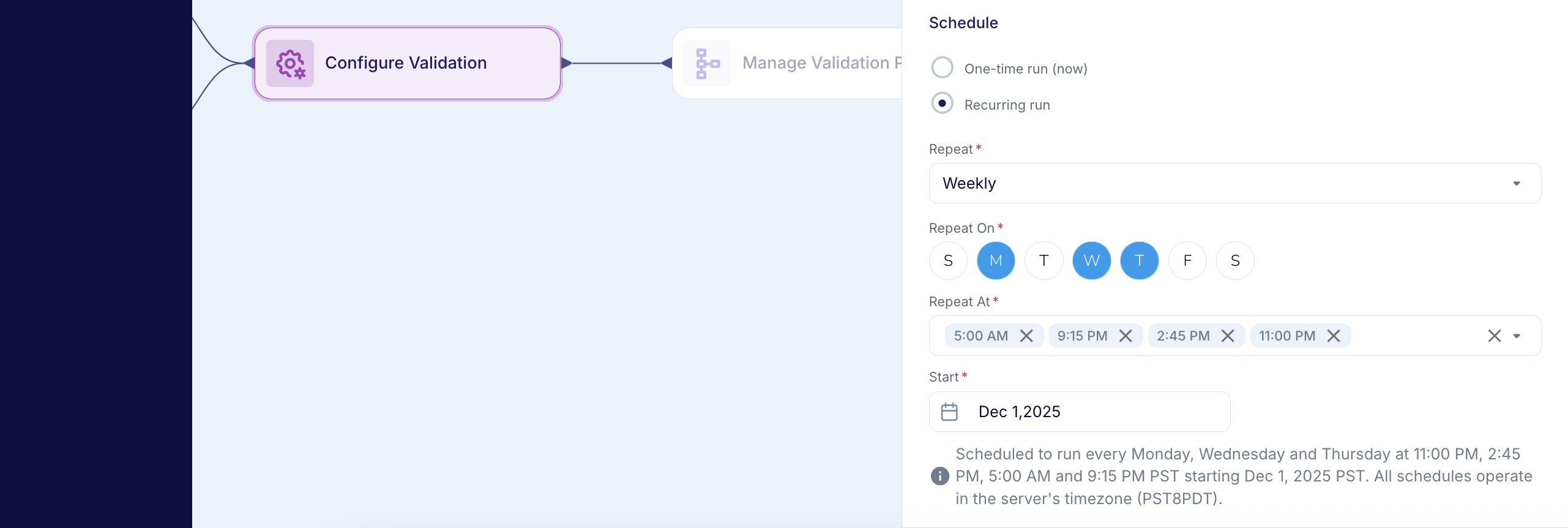
If you choose a Weekly recurring run, you can select one or more days of the week (Sunday through Saturday) and define one or more execution times for those days. You also specify the start date for the schedule. This gives you flexibility to run the Validation on the days and times that best align with your operational workflows.
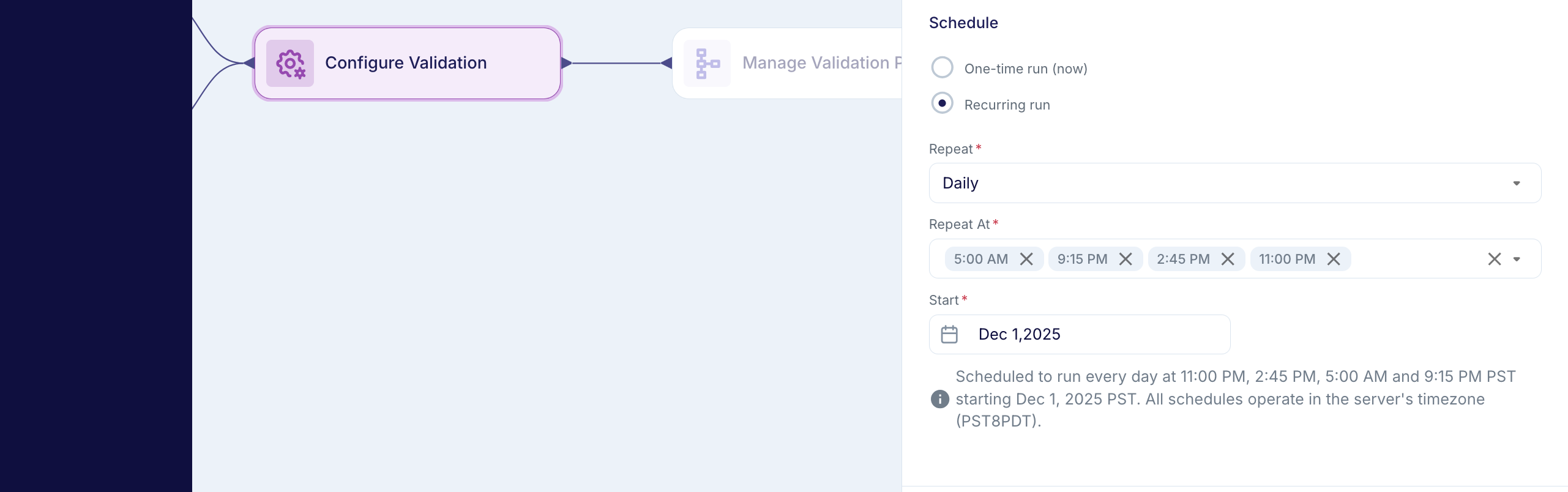
If you choose a Daily recurring run, the Validation will run every day starting from the date you specify. You can define one or more execution times for each day to align with your business needs.
If you choose an Hourly recurring run, you can configure the Validation to repeat at regular intervals—such as every 1 hour, 2 hours, or 4 hours. You must specify the start date and time, and Validata will execute on the selected interval from that point forward. This option is well suited to validate data pipelines that require frequent checks.
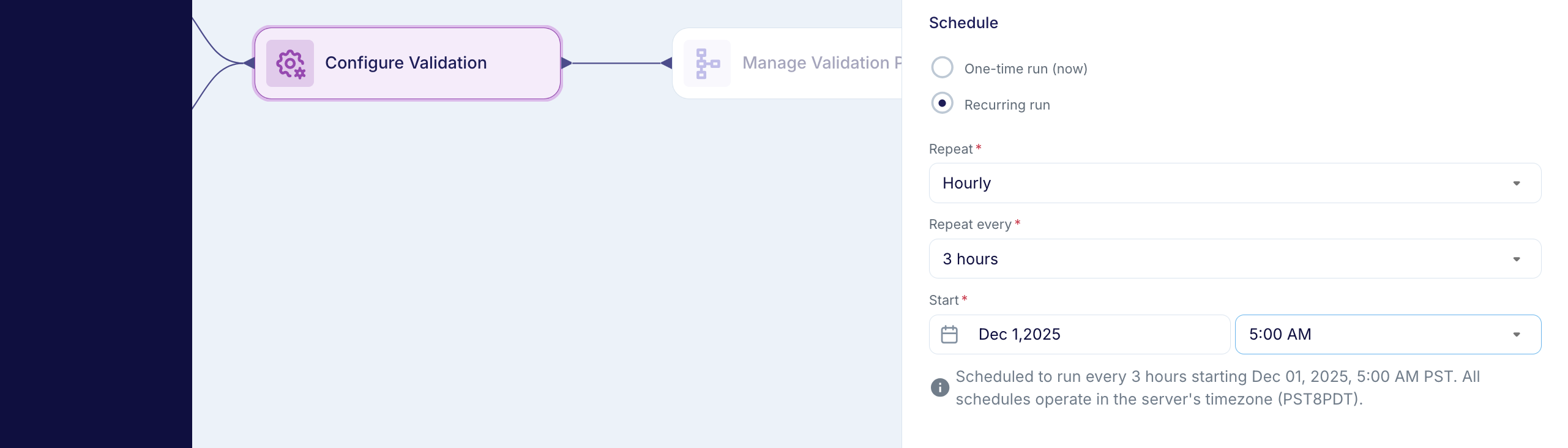
You can pause the recurring runs from the Validation homepage.
Operational considerations
If you choose a recurring cadence, make sure the Validation has enough time to finish before the next scheduled run. Validata allows only one run of a Validation at a time; if a scheduled run begins while another run is still in progress, the scheduled run will be skipped.
You can initiate one-time runs even when a Validation is on a recurring schedule—for instance, to confirm that recent reconciliation steps resolved discrepancies between the Source and Target. However, use manual runs carefully: starting a run may cause the subsequent scheduled run to be skipped if the manual execution overlaps with the scheduled start time.