Configuring Interval Validation
Interval Validation is a method for comparing data records that were modified within a specified time window. You can define the time window for comparison in two ways:
Absolute Interval: A window defined by specific start and end timestamps (e.g., "from 2025/11/29 1:00 PM to 2025/11/30 5:00 PM").
Relative Interval: A window defined using a duration relative to the run’s start time (e.g., "from 8 hours to 4 hours" prior to the run start time, or “between 1 hour ago to now” where now refers to the run start time).
You can apply the same time window to both Source and Target datasets or specify different windows for each dataset to account for replication lag or other timing offsets.
To use Interval Validation, both Source and Target tables must contain a timestamp or datetime column. Go to Supported data systems to see which timestamp and datetime data types are supported for your chosen Source and Target systems.
You can use Interval Validation with both validation scopes—Validation Set (see screenshot below) and Quick Start (Validation Pair). The interval settings apply to all Validation Pairs in the configuration.
Interval Validation is useful in use cases such as the following:
Targeted interval-based checks: Validate only the records updated within a specific time window—useful for isolating discrepancies after a batch load, deployment, ETL refresh, point-in-time fix, or other discrete data event.
Post-Incident Verification: After resolving a data issue or pipeline outage, validate only the records updated during the impacted period to verify that repairs took effect and no residual inconsistencies remain.
Aligning with replication cadence: Interval Validation works well when your Validation schedule mirrors your replication cycle. For example, if replication runs every two hours, you can validate only the records updated during that same two-hour window, keeping each run focused and efficient.
For an interactive walkthrough of creating a validation using Interval Validation, see Interactive walkthroughs.
Setting up Interval Validation
On the Create Validation screen, select Quick Start (Validation Pair) or Validation Set as your scope.
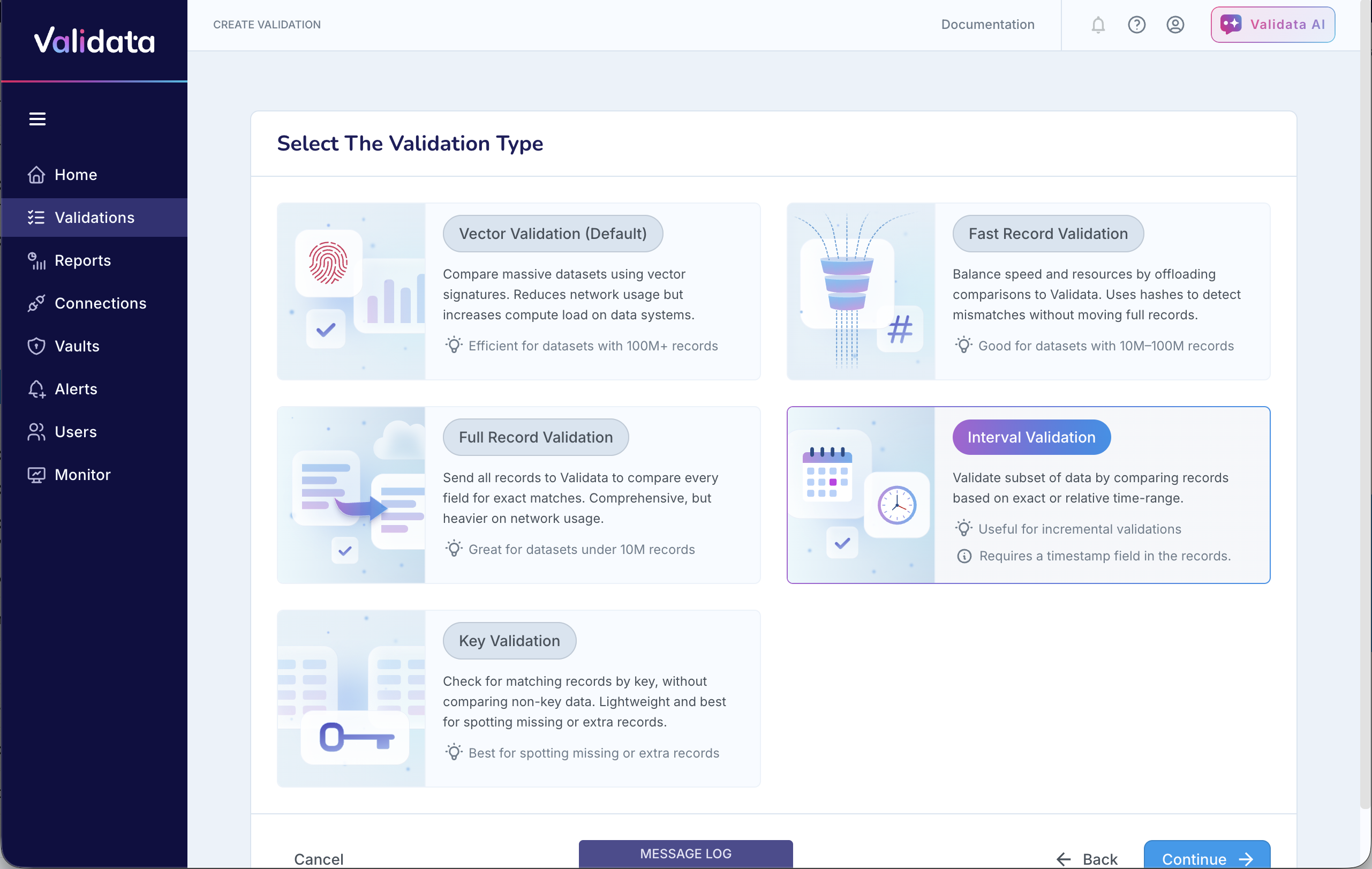
On the Select The Validation Type screen, choose Interval Validation.
The screenshot below shows the Validation Types when you choose the Validation Set scope.
Set up the Connection Profiles to connect Validata to your Source and Target systems.
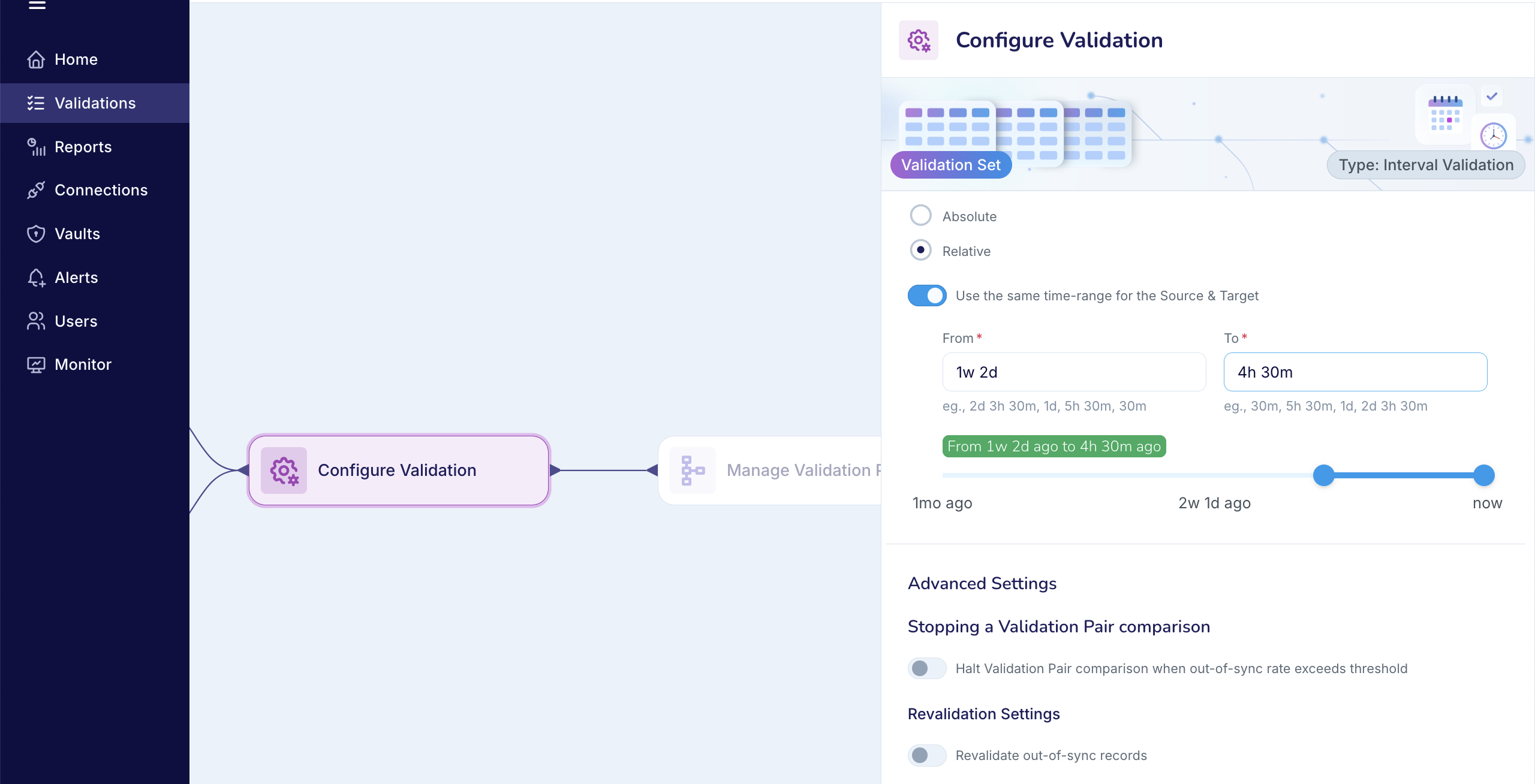
On the Configure Validation screen, you can configure Interval Validation as well as the Advanced Settings for the Validation configuration.
Interval Validation: You must choose how to represent the time-ranges—using either an Absolute time interval or a Relative time interval.
Advanced settings: See Advanced Settings.
After entering all required settings on the Configure Validation screen, click Verify and Save to proceed. Validata will validate your inputs and then create the new Validation
Using an Absolute time window
Setup parameters
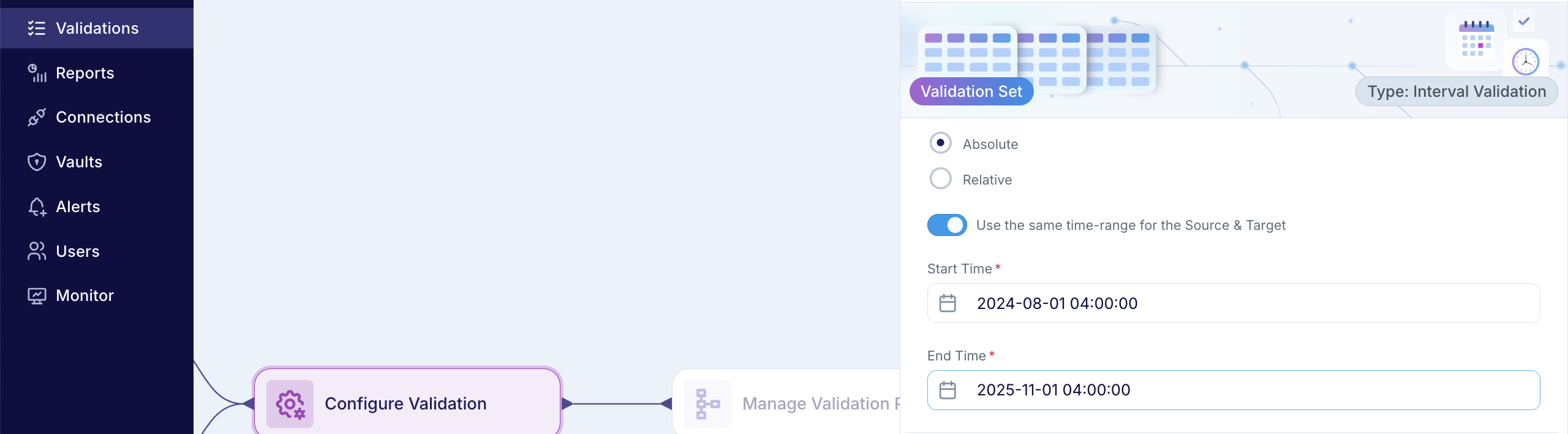
Same Start and End times for the Source and Target datasets: You can set a fixed Start Time and End Time on the UI, as shown below.
When you apply the same Start and End Times to the Source and Target datasets, Validata selects only the records from each Source table and its corresponding Target table that were updated within that exact time range. This time window is applied consistently across all Validation Pairs in the configuration, ensuring that each pair is compared over the same fixed period of activity.
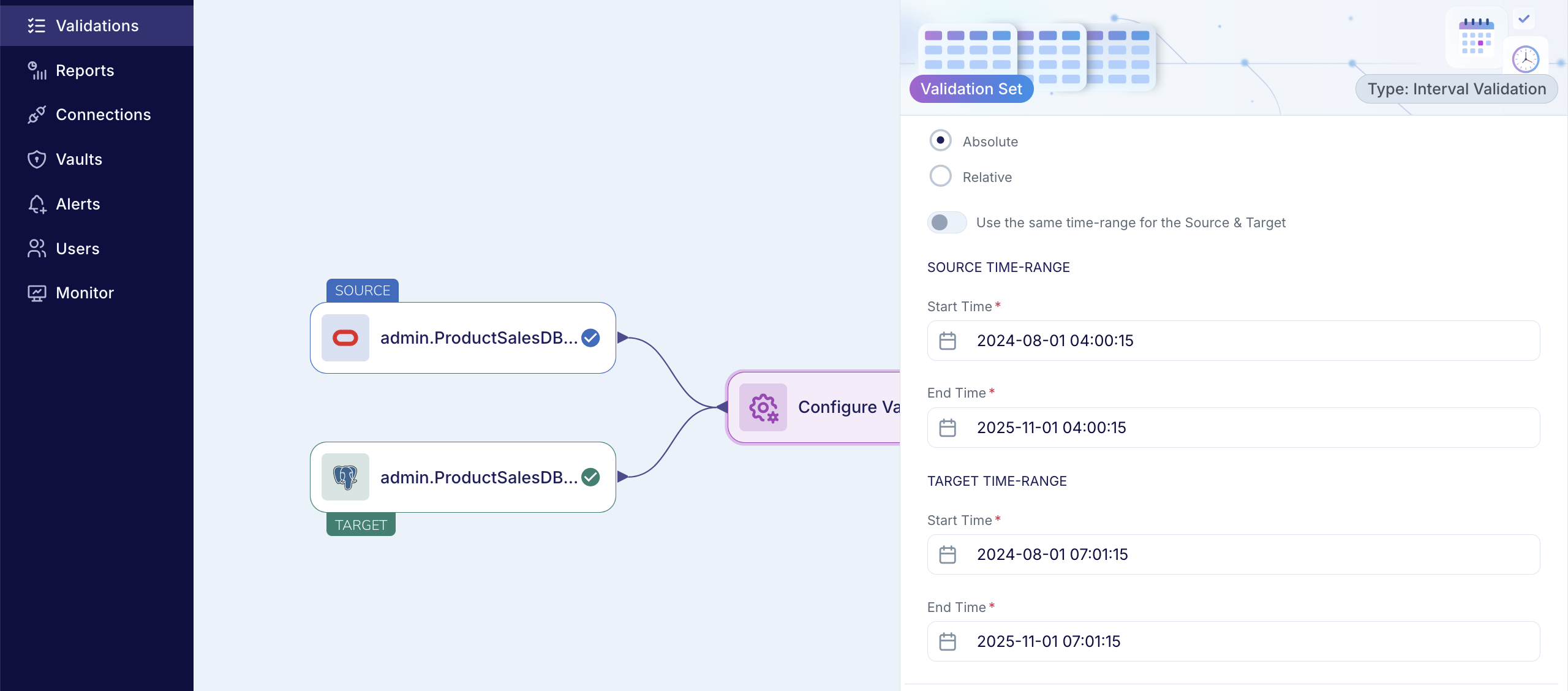
Separate Start and End Times for the Source and Target datasets: You can also set separate Start and End Times for the Source and Target datasets when you need to account for replication latency or other timing offsets, as shown below.
In this mode, Validata selects records from each Source table based on the Source time window, and records from each corresponding Target table based on the Target time window. These windows apply to all Validation Pairs in the configuration, allowing each comparison to reflect the timing realities of your data pipeline while still using consistent logic across pairs.
For example, assume you are replicating data from a data system in the Pacific Time Zone to one in the Eastern Time Zone, which is three hours ahead. With a one-minute replication delay and each system logging update times in its local timezone, a record updated in the Source at 4:00 AM PT will appear in the Target at 7:01 AM ET. In scenarios like this, you can use Interval Validation and configure separate time windows for the Source and Target to account for the timezone and latency offset. The screenshot below illustrates this concept.
Supported data types
The specified date range is interpreted in Universal Time Coordinated (UTC) for both Absolute and Relative intervals.
When configuring an Absolute time window, the Start Time and End Time values are evaluated in UTC. Validata filters records based on UTC-normalized timestamp values. Ensure that the timestamp values stored in the Source and Target systems are aligned with UTC to avoid unintended mismatches.
The table below lists the supported data types for absolute time-range key selection:
Data System | Supported data type for absolute time ranges |
|---|---|
BigQuery |
|
Databricks |
|
MySQL |
|
Oracle |
|
PostgreSQL |
|
Snowflake |
|
SQL Server |
|
Operational considerations
You can use an absolute time window for one-time Validation Runs. This approach is ideal for spot checks because you are able to specify the unique Start and End times for every individual run.
However, absolute time windows aren't suitable for recurring runs because every subsequent execution would compare the same records that were updated in the exact same time interval. For recurring runs, it is best to use Interval Validation with relative time windows
Using a Relative time window
Specifying relative time windows
When you define a relative time window, Validata calculates the specific time boundaries for the comparison based on the exact moment the Validation Run is launched.
For example, if you specify a window “from 4 hours to 2 hours ago” in the Validation configuration and the run starts at 3:00 PM, Validata will compare records updated between 11:00 AM and 1:00 PM.
In the table below, we show how you can define a relative time window for Interval Validation.
Example | Time specification for Interval Validation | Comments |
|---|---|---|
30 days ago | 30d or 1mo |
|
1 week 6 days ago | 1w 6d |
|
2 days 10 hours ago | 2d 10h |
|
3 hours 24 minutes ago | 3h 24m |
|
53 minutes ago | 53m |
|
The current time (or the time when the Validation Run started) | now |
|
Setup parameters
Time-range: You can define the time window using the time slider—which supports ranges from hours up to several days or weeks—or by entering the relative start and end times directly in the UI. If you manually specify the Interval Validation window, the relative end must be closer to the Validation Run’s start time than the relative start to ensure a valid time range.
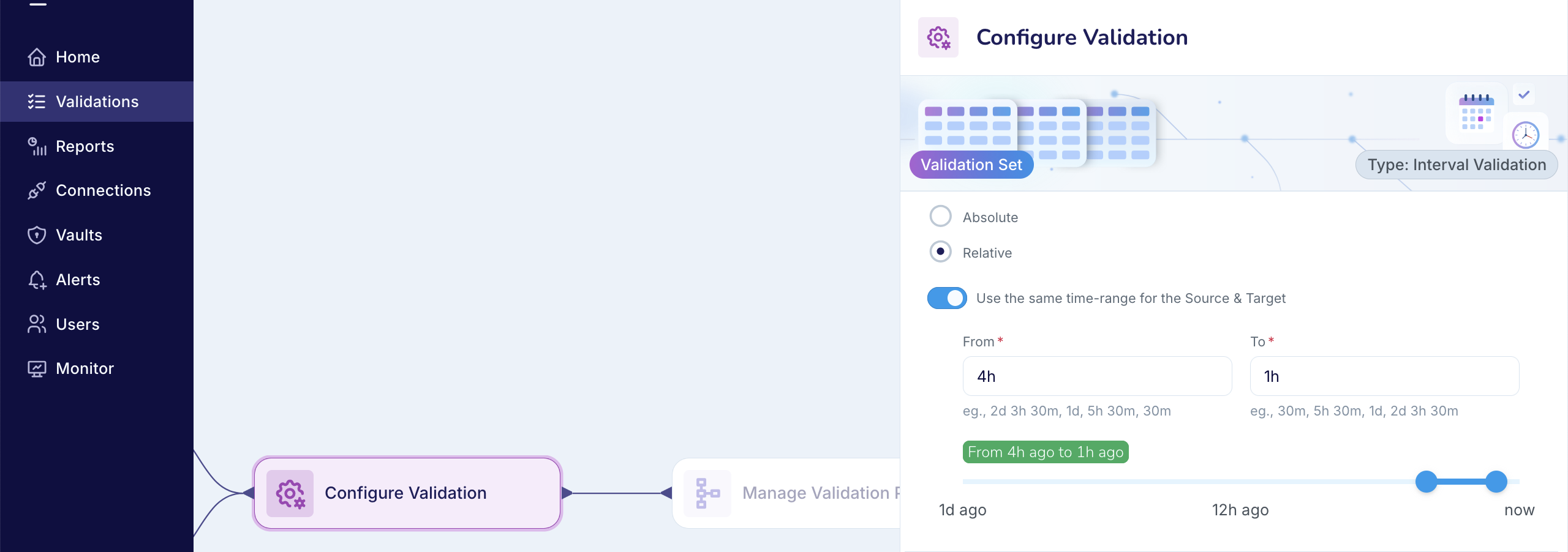
Same Start and End times for the Source and Target datasets: You can set the relative Start Time and End Time on the UI, as shown below.
When you apply the same window to both datasets, Validata selects only the records from each Source table and its corresponding Target table that were updated within the computed time range. This window is applied consistently across all Validation Pairs, ensuring that every pair is compared over the same period of activity.
For example, assume you want to schedule a recurring run every three hours to compare the data updated in the Source during the previous three-hour period and replicated to the Target. You can configure Interval Validation to use any relative range that spans three hours—such as “from 4 hours ago to 1 hour ago,” as shown in the screenshot below.
Separate Start and End Times for the Source and Target datasets: You can set different relative Start and End Times for the Source and Target datasets when you need to account for replication latency or other timing offsets.
In this mode, Validata uses the Source time window to select records from each Source table and the Target time window to select records from each corresponding Target table. These windows apply to all Validation Pairs, allowing each comparison to reflect the timing realities of your data pipeline while maintaining consistent validation logic across pairs.
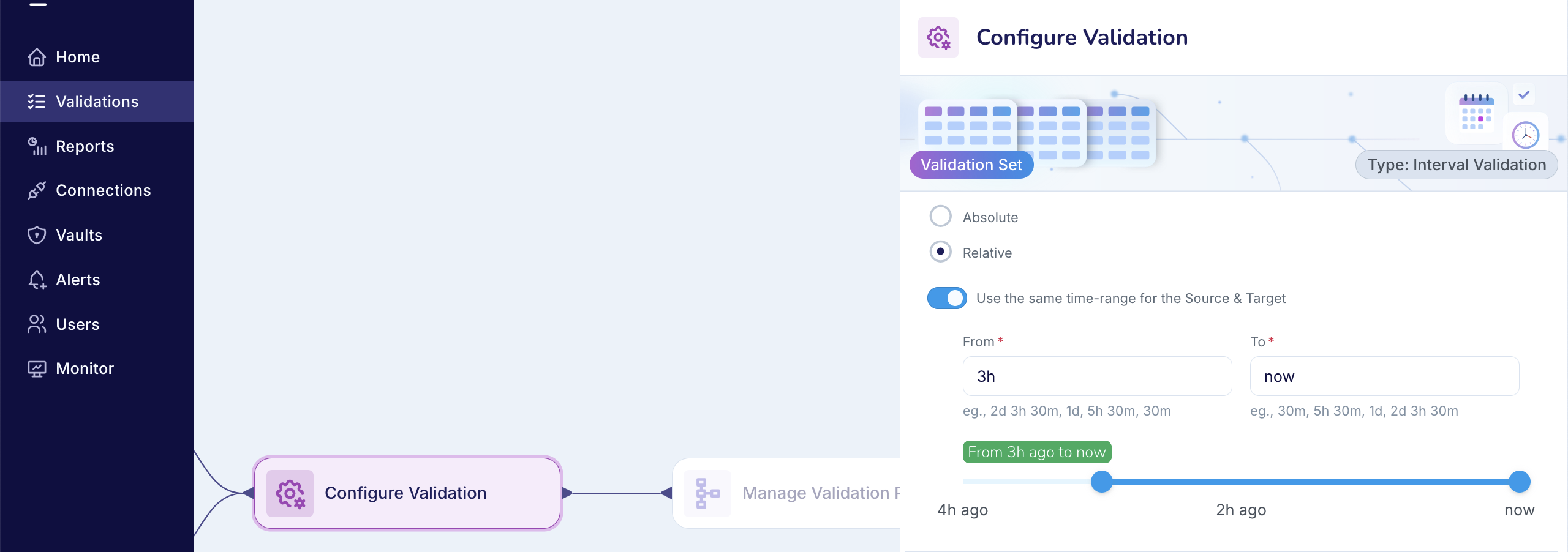
For example, assume you want to schedule a recurring run every three hours, and updates to the Source reach the Target within five minutes. In this case, you can use Interval Validation with different relative windows for the Source and Target so they both represent the same logical three-hour period. For instance, you can set the Source time window to “from 4 hours ago to 1 hour ago” and the Target window to “from 3 hours 55 minutes ago to 55 minutes ago” to account for the five-minute replication delay. This setup is illustrated in the screenshot below.
Supported data types
When using relative intervals, all calculations are performed in Universal Time Coordinated (UTC):
nowis evaluated as the exact UTC timestamp at query execution time.All interval arithmetic is calculated in UTC.
The interval specified in the UI must exactly match the timestamp values displayed in the database table. This validation is timezone-agnostic—Validata filters records that fall within the specified interval based on the literal timestamp values, regardless of timezone considerations.
The table below lists the supported data types for relative time-range key selection:
Data System | Supported data type for relative time ranges |
|---|---|
BigQuery |
|
Databricks |
|
MySQL |
|
Oracle |
|
PostgreSQL |
|
Snowflake |
|
SQL Server |
|
Operational considerations
If you set different time windows for the Source and Target datasets, the
datetimeortimestampvalues in corresponding records will naturally differ. In this case, when configuring the Validation Pairs, do not select those columns for comparison, as they will produceOUT-OF-SYNCoutcomes even when the rest of the data is equivalent.