Creating a new Validation
After deciding the scope and method of the validation, you have to start building it.
Note
Your configuration remains a draft until you move past selecting the Validation Type and proceed to set up the Connection Profiles. If you exit the workflow before reaching the Connection Profile step, the draft is discarded and cannot be recovered.
Once the Validation configuration is created:
The core attributes—Validation Name, Source and Target definitions, Validation Scope, and Validation Type—are fixed. To change any of these, you must create a new Validation.
Validata saves your progress automatically, allowing you to exit the workflow and return later to resume where you left off.
Complete the following steps to create a new validation.
On the left navigation pane, select Home or Validations. Then click Create Validation.
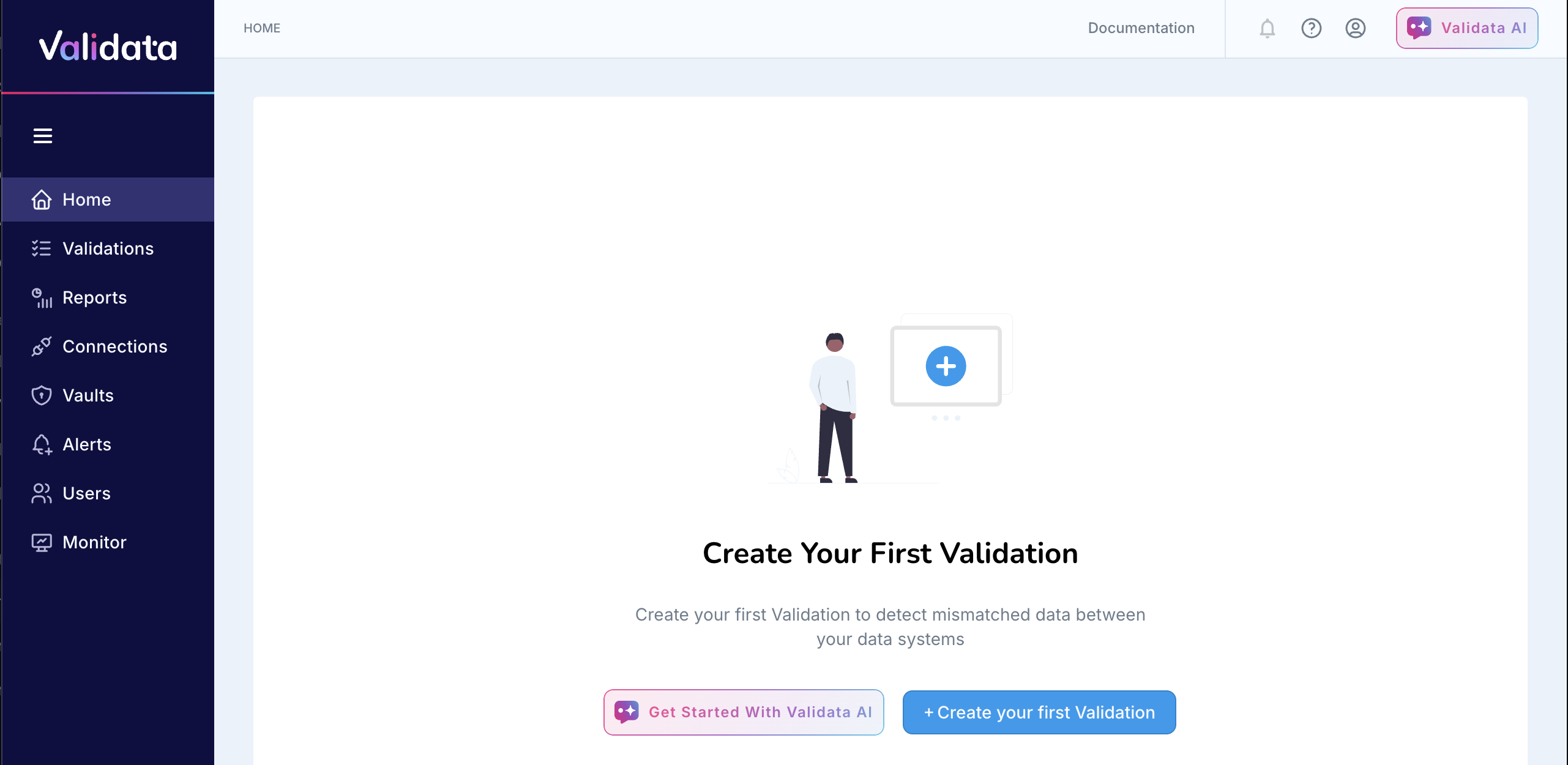
You can also use Validata AI to help you create a new Validation. It will launch the same sequence of steps to create a new Validation.
Enter a Validation Name.
You must provide a unique name for the Validation. Once the Validation configuration is created, the name cannot be changed.
Define your Source and Target from the supported list of data systems.
The Source is the authoritative dataset used as the baseline for validation. It is commonly the upstream system in a replication pipeline or the dataset you trust as the reference point.
The Target is the dataset whose records are matched against those of the Source to identify any deviations. It is usually the downstream replica whose accuracy must be confirmed.
Once the Validation configuration is created, the Source and Target definitions cannot be changed.
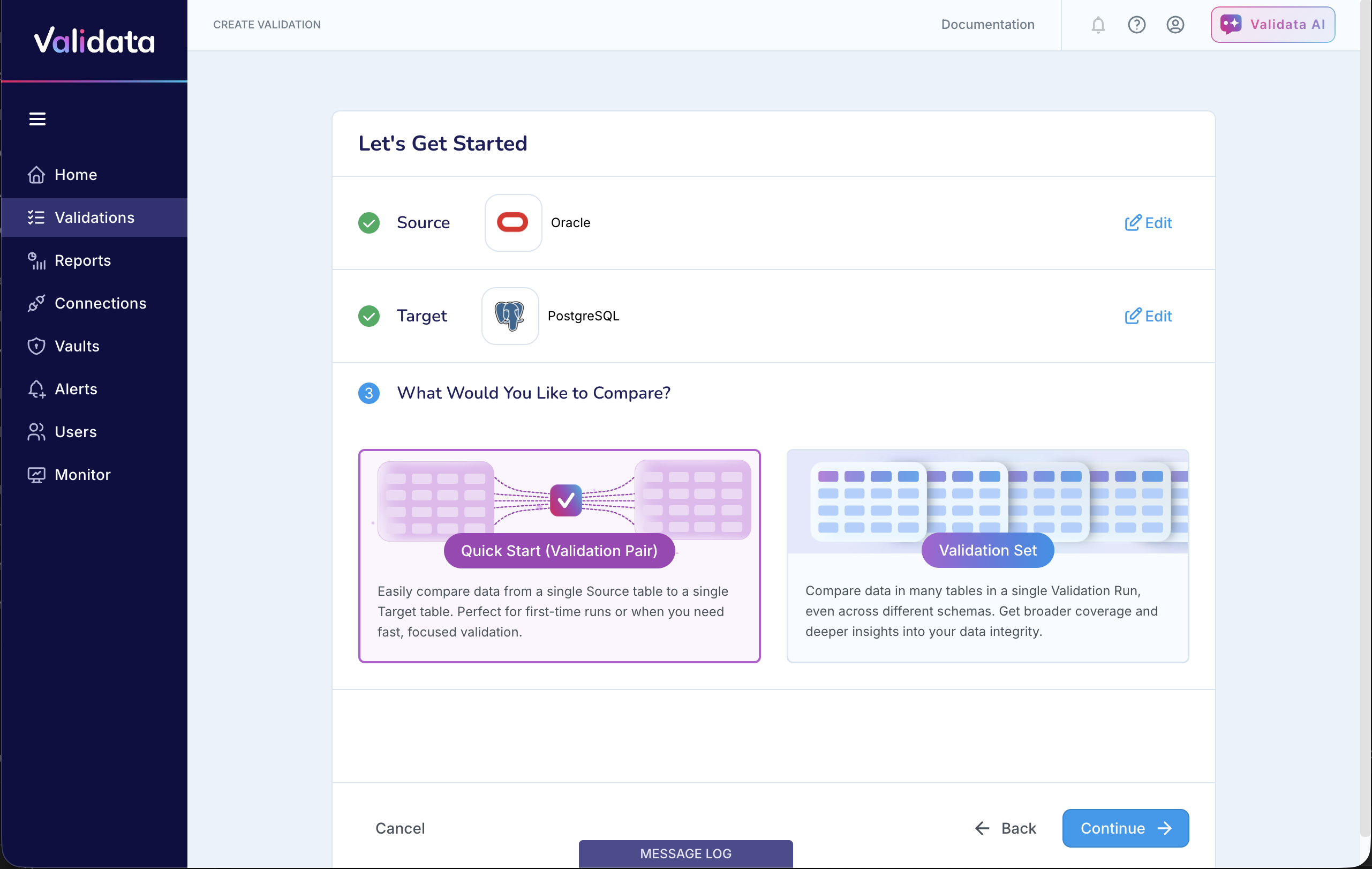
Choose the scope of your Validation: Quick Start (singleton Validation Pair) or Validation Set.
Refer to Choosing Validation scope and method on selecting the appropriate scope for your validation.
Once the Validation configuration is created, the Validation Type cannot be changed.
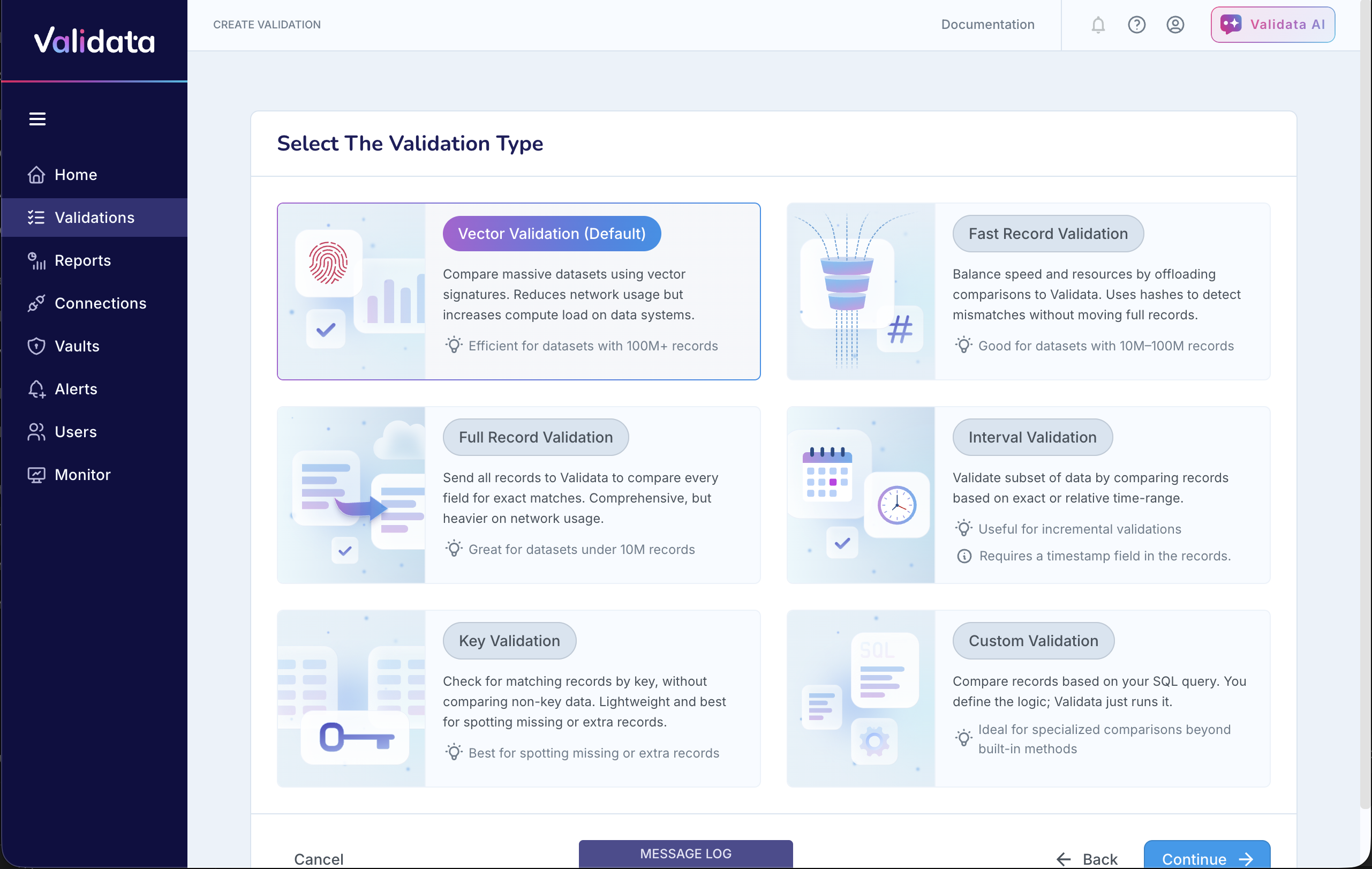
Select the Validation Type.
Refer to Choosing Validation scope and method on selecting the appropriate method for your validation.
The Quick Start (Validation Pair) and Validation Set scopes support all built-in validation methods—Vector Validation, Fast Record Validation, Full Record Validation, Interval Validation, and Key Validation.
Additionally, the Custom Validation method is available when you select Quick Select (Validation Pair) for your validation scope, as shown below.
Once the Validation configuration is created, the Validation Type cannot be changed.
Continue to the next step to set up the Source and Target connection profiles.
If you need to change the Validation Name, Source and Target definitions, Validation Scope, or Validation Method, you can still return to the previous screens to make those updates. Once you proceed to the Connection Profiles step, Validata creates the Validation Configuration and these attributes become fixed for this Validation.
Once the Validation configuration has been created, you can complete it immediately or exit and return later. If you exit, Validata automatically saves your progress so you can resume configuration exactly where you left off.