Configuring Custom Validation
With Custom Validation, you control how Validata reads and prepares data by writing your own SQL queries for the Source and Target tables. Validata compares the results of your queries rather than the raw tables, giving you the flexibility to apply filters, transformations, or other custom logic that goes beyond the built-in methods.
You can use Custom Validation only with the Quick Start (Validation Pair) scope; it is not available for Validation Sets.
Constraints: Custom Validation does not support Revalidation and generation of reconciliation scripts.
For an interactive walkthrough of creating a validation using Custom Validation, see Interactive walkthroughs.
Setting up Custom Validation
On the Create Validation screen, select Quick Start (Validation Pair) as your scope.
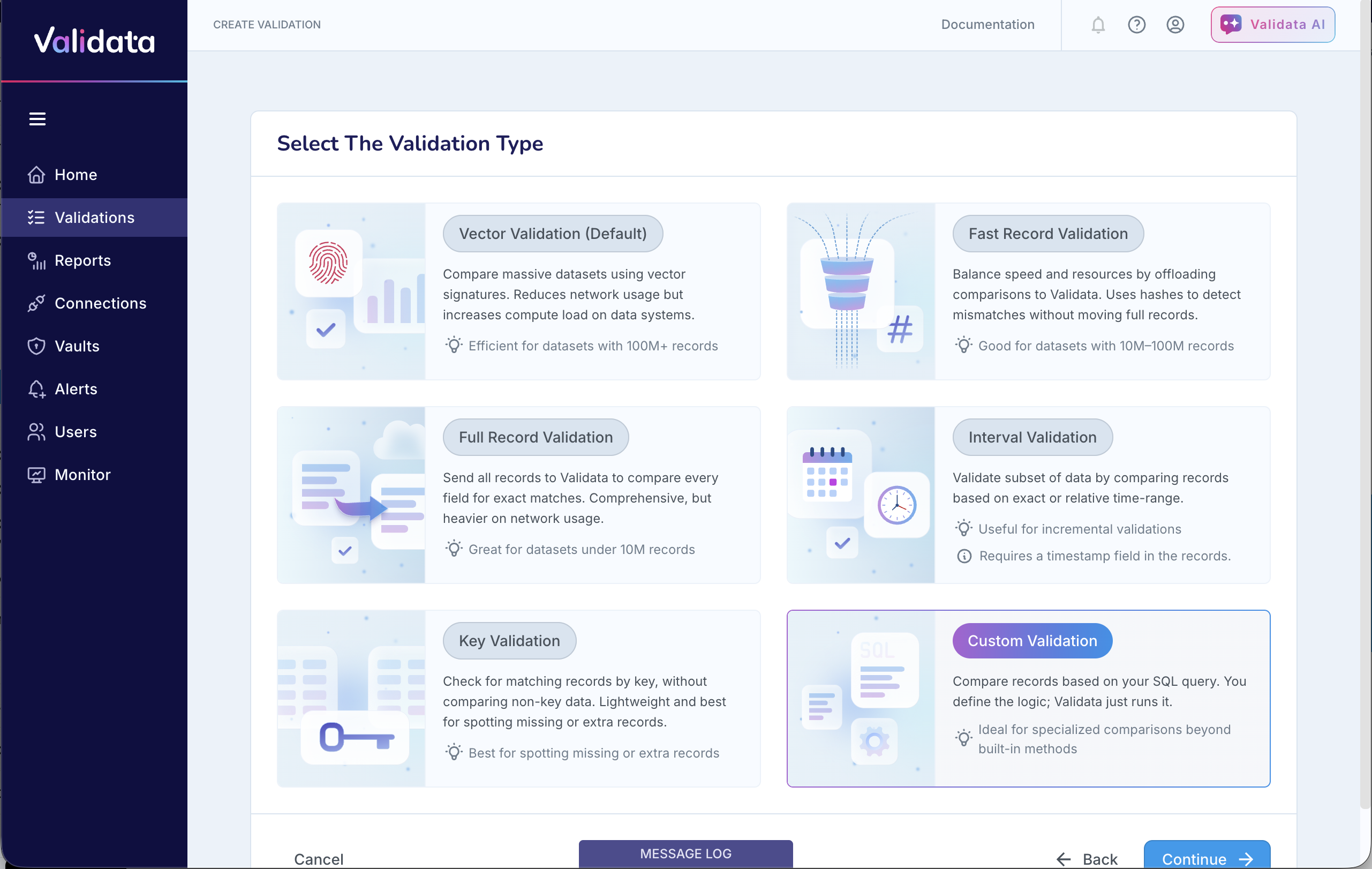
On the Select The Validation Type screen, choose Custom Validation.
Set up the Connection Profiles to connect Validata to your Source and Target systems.
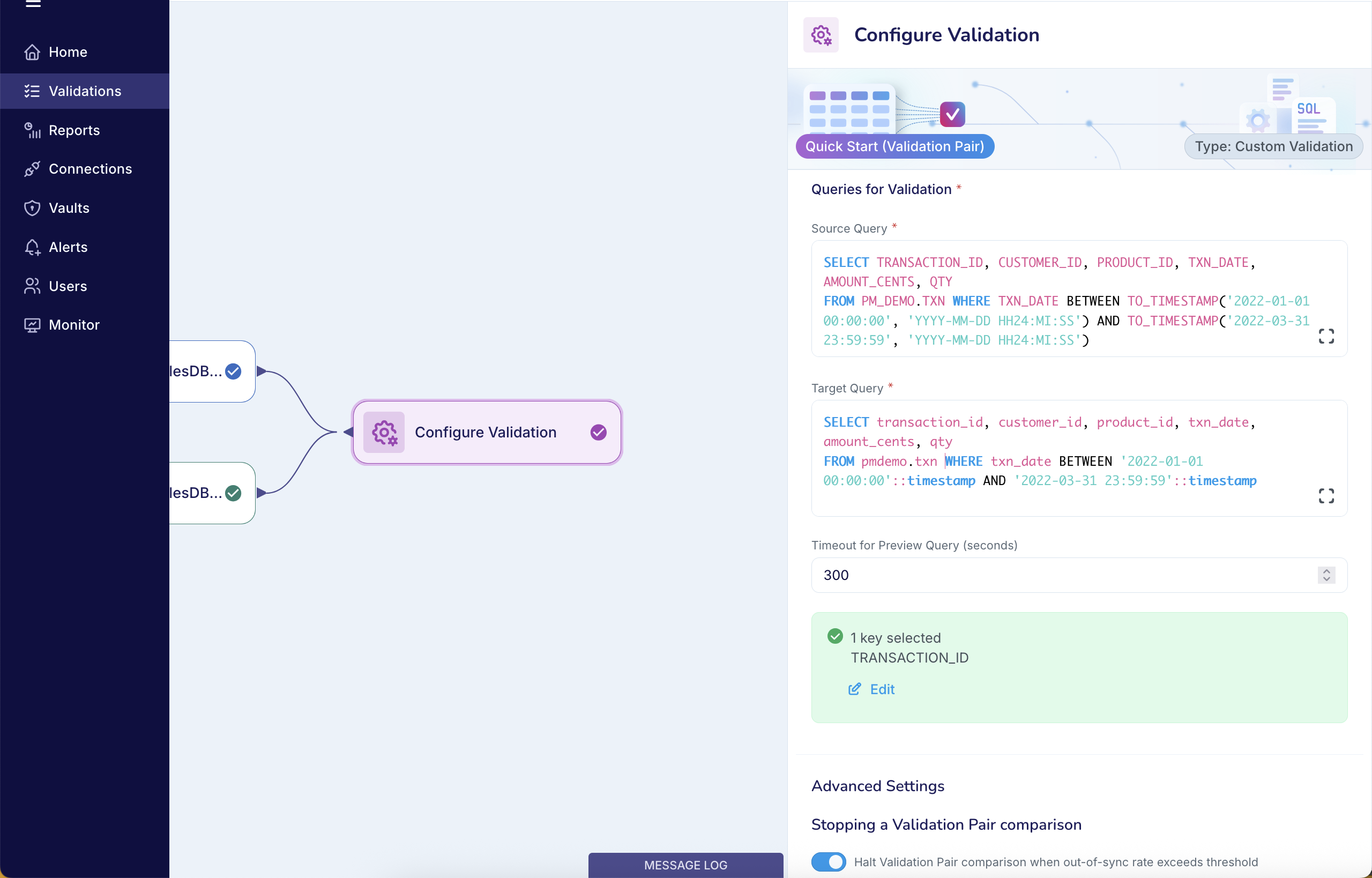
On the Configure Validation screen, you can configure Custom Validation as well as the Advanced Settings for the Validation configuration.
Custom Validation:
Source Query: Enter the SQL query for the Source system.
Target Query: Enter the SQL query for the Target system.
Timeout: Specify the Timeout for Preview Query (seconds). This defines how long Validata will wait for the database to return results when generating the preview sample in the next step (Default: 300 seconds).
After entering your queries, click Preview Results and Select Keys to preview the query results and select the comparison key.
Advanced settings: See Advanced Settings.
After entering all required settings on the Configure Validation screen, click Verify and Save to proceed. Validata will validate your inputs and then create the new Validation.
Essential rules for Custom Validation queries
Avoid invalid query syntax:
Avoid queries that end with a semicolon (
;) or return data types that Validata does not support. Either of these will cause the query to fail.Match column order and data types:
Validata compares the results of your custom queries positionally (by the column's order in the result set). You must design both the Source and Target SQL queries to return columns in the exact same order and with matching data types.
Before proceeding, preview both query results and verify that column order and types align. If the column sequence differs, Validata will compare the wrong values, leading to incorrect
OUT-OF-SYNCoutcomes.Explicitly list columns (Avoid SELECT *):
We recommend you explicitly list column names in your
SELECTstatements (e.g.,SELECT id, name, date ...) rather than usingSELECT *. This ensures the column order remains consistent for positional comparison, even if the underlying table schema changes later.Define a comparison key when possible:
We strongly recommend selecting a comparison key to improve comparison performance. If you do not specify a key, Validata will combine all columns in the query result to form the comparison key, which can slow down comparison.
Sort query results based on the comparison key:
To ensure consistent and deterministic ordering, use
ORDER BYon the comparison key in both Source and Target queries. When results are not sorted, databases may return rows in arbitrary order, which can cause Validata to misalign rows and incorrectly reportOUT-OF-SYNC: EXTRA IN SOURCEorOUT-OF-SYNC: EXTRA IN TARGET.Format data consistently across Source and Target:
Validata performs string-based comparisons and does not convert or normalize data types automatically. Your queries must format values consistently to avoid false mismatches caused by representation differences rather than actual data issues.
Numeric: If Source and Target have numeric columns with different precision or scale, your queries must format values to a common representation
Date/Time: You must explicitly format all temporal values (
date,datetime,timestamp,timestamp with timezone, etc.) as strings using a consistent representation across both Source and Target queries.Boolean: Validata does not convert inconsistent Boolean values (e.g.,
1/0vs.true/false). Your queries must format them to a consistent string representationBest Practice: To ensure predictable outcomes, format all data types to string representations in your custom queries.
Operational considerations
Revalidation is not supported for Custom Validation.
Custom Validation executes the full query directly on your external Source and Target data systems. Complex queries with joins, aggregations, or heavy transformations can increase compute load on those systems.
Common Use Cases
We recommend using Custom Validation for the following scenarios:
Use Case: APPEND-mode replication
When comparing data written to a data warehouse table in APPEND mode, we recommend using Custom Validation. Validata’s built-in methods classify and exclude all duplicate rows created by APPEND-mode replication, making them unsuitable for validating updated records.
Background
When you replicate data to a data warehouse (e.g. Snowflake, BigQuery or Databricks) in APPEND mode, each incoming record is added as a new row. Existing rows are never updated or deleted.
If you update an existing record in your Source dataset, the data warehouse appends the updated version as a separate row in the Target table, creating duplicates that share the same primary or other identifying keys.
Validata’s built-in validation methods—Vector Validation, Fast Record Validation, Full Record Validation, Key Validation, Interval Validation—automatically classify and exclude these duplicate records from comparison. Consequently, these methods only compare original, unchanged records in the Target table and do not validate any updated rows produced by APPEND-mode replication.
Solution
You can use an SQL query to create a unique view from the APPEND-mode data warehouse table, fetching only the most recently updated version of each record. You will need a similar, appropriate SQL query for the Source table. Validata compares the results of these standardized, query-driven datasets.
To validate data produced by APPEND-mode replication, use Custom Validation with SQL-driven, deduplicated views of your Source and Target tables:
Define Queries: Enter separate SQL queries for the Source and Target tables. The Target query must fetch only the latest version of each record from the APPEND-mode table, filtering out older duplicates.
Perform Comparison: Validata executes these queries against the respective systems and then compares the results of the two standardized, query-driven datasets.
You can use Custom Validation to validate data between:
A database table and a data-warehouse table populated in APPEND mode, and
Two data-warehouse tables—in the same warehouse or across different warehouses—when one or both tables are populated in APPEND mode.
Use Case: Compare data transformed using an SQL function
When comparing data replicated between two data systems, you may encounter columns—such as dates or timestamps—that differ because the data is transformed either by the Target system or by logic applied in-flight during replication. If that transformation can be expressed using an SQL function, we recommend using Custom Validation. Validata’s built-in methods compare raw values without accounting for these transformations, resulting in predictable mismatches.
Background
When you replicate data from one system to another, the Target may store certain fields in a different format or structure than the Source. These differences often result from transformation logic applied during replication (in-flight or by the Target system) or simply because the Target requires a different data type for the same underlying value.
Validata’s built-in validation methods—Vector Validation, Fast Record Validation, Full Record Validation, Key Validation, and Interval Validation—compare Source and Target values exactly as stored. Because they do not apply transformation logic, they will flag every row containing a transformed column as OUT-OF-SYNC: Content Mismatch, even when the underlying data is equivalent.
Common examples include:
Date/Time Formatting: A Source column stored as a
datetime2(e.g.,2025-11-23 03:00:00.1234567) is written to the Target as a formatted string using aVARCHARorNVARCHARtype (e.g.,2025/11/23).String Truncation: A Source column stored as
VARCHAR(255)(e.g.,Customer Name 12345) is truncated to fit a smaller Target column such asVARCHAR(10)(e.g.,Customer N).Timestamp to Numeric Conversion: A
TIMESTAMPorDATETIMEfrom the Source is converted to an integer epoch format in the Target (e.g.,1667673600).Numeric Precision Loss: A Source column stored as a high-precision
DECIMAL(18, 8)(e.g.,123.45678912) is written to the Target as a lower-precisionDECIMAL(10, 4)(e.g.,123.4568), causing rounding or truncation.
In each of these scenarios, the built-in methods compare the raw values and do not account for the transformations that produced the Target results, leading to mismatched outcomes.
Solution
To validate datasets where the Source and Target differ due to a transformation, use Custom Validation when the transformation can be expressed using SQL functions or queries. By defining custom SQL queries, you can standardize the output from both the Source and Target systems, ensuring Validata compares identical data representations.
Define Queries: Enter separate SQL queries for the Source and Target tables. Design the queries so that the necessary transformation (or its inverse) is applied on the appropriate side, and the results are fully aligned. The queries should produce normalized values—such as formatted dates, converted timestamps, truncated strings, or cast numeric types—that match exactly.
Perform Comparison: Validata executes these queries against the respective systems and then compares the results of the two standardized, query-driven datasets
You can use Custom Validation to compare data between any two systems—databases, data warehouses, or a mix—whenever the required transformation can be represented using SQL.
Use Case: Collation or character set differences between source and target
When validating records between Source and Target table pairs where the comparison key is a text column that uses different collation or character-set rules, Validata may report Out-of-Sync results even when the data is identical. In these cases, we strongly recommend using a non-textual (numeric) comparison key whenever possible, or using Custom Validation.
Background
Text-based comparison keys are interpreted and sorted according to the collation and character-set settings of each system. If the Source and Target differ in case sensitivity, accent handling, encoding, or sort order, they return rows in a different sequence.
Validata's row-aligned comparison methods require consistent ordering of returned rows. When textual keys sort differently across systems, matching records appear in different positions, and Validata may incorrectly classify them as Out-of-Sync even though the underlying business data is the same.
For example, SQL Server often uses a case-insensitive collation (such as SQL_Latin1_General_CP1_CI_AS), while Snowflake uses UTF-8 binary ordering, which is case-sensitive. Identical values therefore sort differently, resulting in inconsistent row ordering and incorrect mismatches. Encoding differences (for example, UTF-16 vs. UTF-8) can further influence comparison behavior.
Solution
To validate table pairs where the comparison key is a text column affected by collation or character-set differences, use Custom Validation and explicitly enforce identical ordering in your SQL queries. This ensures Validata receives both datasets in the same sequence.
Define queries
Create separate SQL queries for the Source and Target.
Apply a consistent, compatible collation in the
ORDER BYclause (for example, apply a binary collation in SQL Server to match Snowflake).Ensure both queries return the same columns in the same order.
Use binary or other compatible ordering to guarantee identical sorting across systems.
Perform comparison
Validata executes the Source and Target queries and compares the standardized, consistently ordered result sets. Once ordering is aligned, incorrect Out-of-Sync results caused by collation differences are eliminated.
Example: Aligning data in SQL Server with data in Snowflake
SQL Server (apply a binary collation to match Snowflake ordering):
SELECT StringKey, STATUS
FROM SQLTestdata.TimestampKeyTable
ORDER BY StringKey COLLATE Latin1_General_100_BIN2;
Snowflake (binary ordering is the default):
SELECT StringKey, STATUS
FROM SQLTestdata.TimestampKeyTable
ORDER BY StringKey;
With collation alignment enforced, both systems return rows in identical order, allowing Validata to compare them accurately.
When to use this method of Custom Validation
This method of Custom Validation is strongly recommended whenever a text-based comparison key in the Source and Target is subject to:
Different sort order
Different case-sensitivity rules
Different encodings
Different handling of special characters or accents