Validation Pair Report
The validation pair report is the core reporting unit in Validata. Nearly all analysis—metrics, mismatch trends, and reconciliation workflows—originates from this report.
If the validation pair comparison returns an In-Sync outcome, it indicates that the source and target tables are identical.
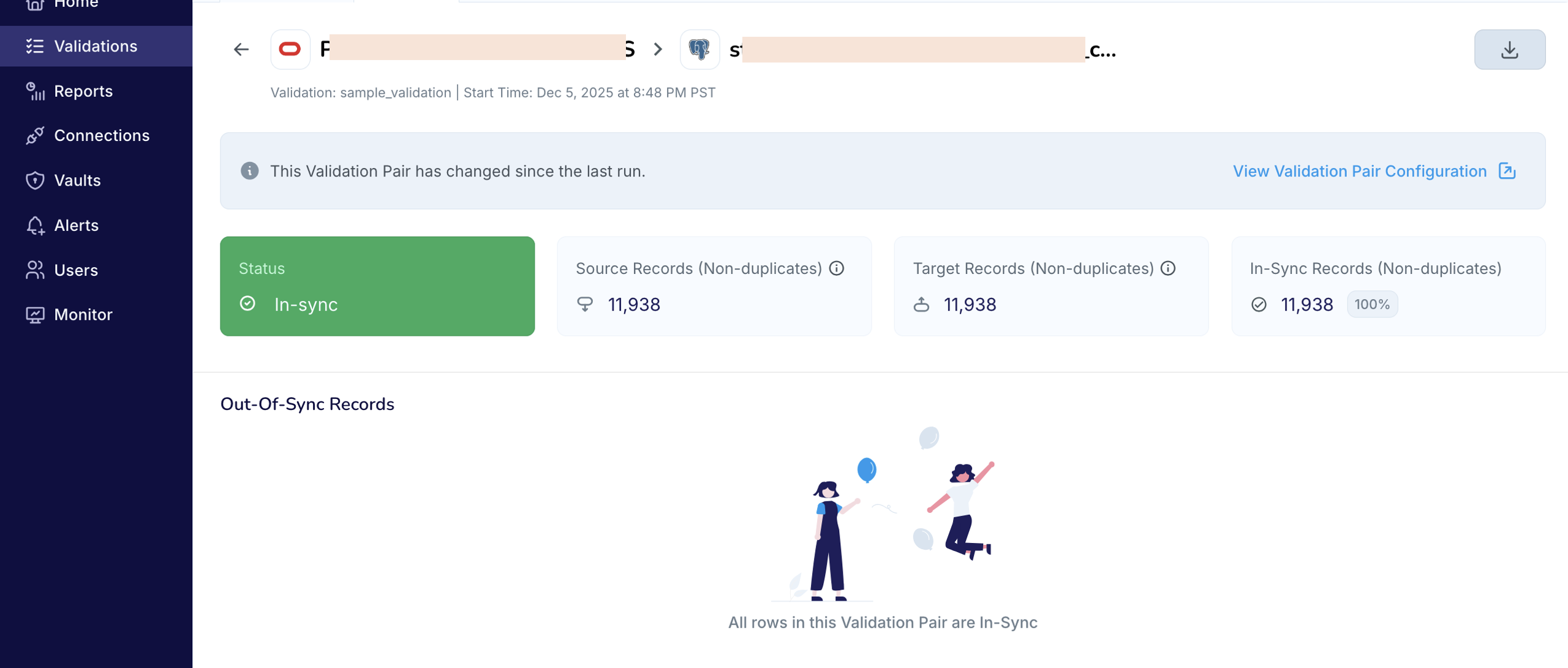
If a validation pair comparison completes with an Out-of-Sync or Halted outcome, the validation pair report provides a detailed view required to understand why the source and target tables differ and to what extent. Each table pair contributes to the overall alignment of the source and target datasets, and the history of Out-of-Sync results across runs reflects how each table has behaved over time.
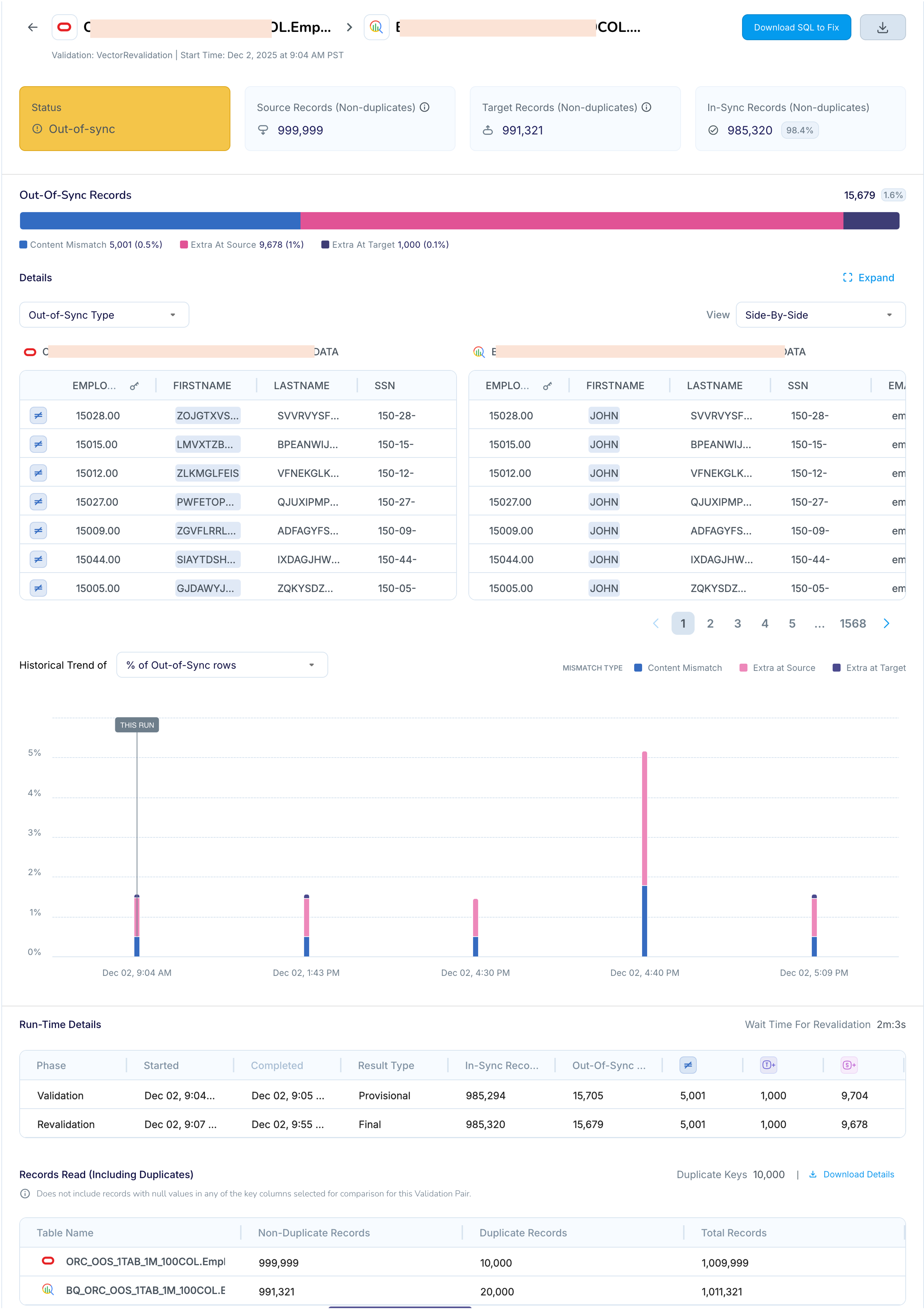
If your goal is to bring the target dataset back into alignment, the validation pair report also provides downloadable reconciliation scripts for Out-of-Sync pairs. These scripts can be executed directly against the target system to correct the discrepancies identified during the run.
In the following sections, we examine a sample validation pair report in detail. The example compares an Out-of-Sync pair where the source system is Oracle and the target system is BigQuery, allowing us to illustrate each component of the report and how it supports analysis and reconciliation.
Key metrics
The key metrics are generated at the end of the validation pair comparison. If revalidation is enabled and the first comparison phase produces out-of-sync records, the metrics are instead generated at the end of the revalidation phase.
Note
See Understanding the Comparison Process to learn how Validata computes the comparison metrics.
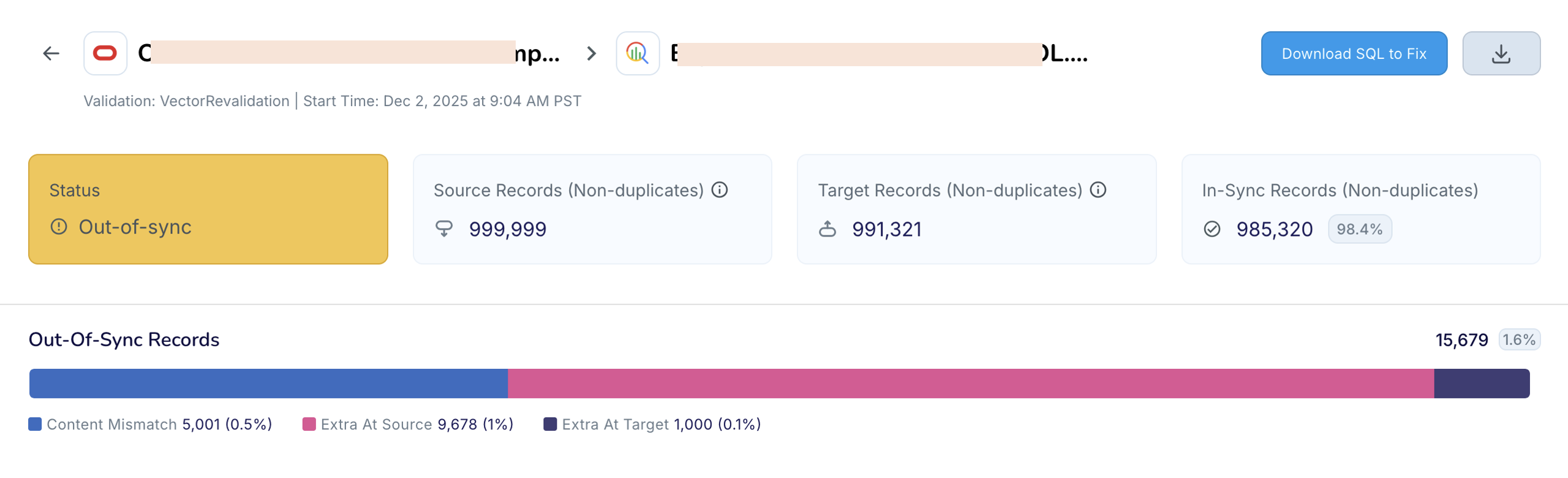
Status: The final outcome of the validation pair. Possible values are
In-Sync,Out-of-Sync,Halted,Canceled, orError. See Validation Pair Comparison Lifecycle to learn more.Source Records (Non-duplicate): The count of source-side records used for comparison after Validata removes null-key rows and excludes duplicates.
Target Records (Non-duplicate): The count of target-side records used in comparison after Validata removes null-key rows and excludes duplicates.
In-Sync Records: The number of records that are identical between source and target based on the selected comparison key and the selected non-key column pairs, as defined in the validation configuration. Validata classifies a record as in-sync only when all configured column pairs match for that record on the source and target tables. The in-sync percentage is calculated by dividing the number of in-sync records by the combined total of in-sync and out-of-sync records.
Out-of-Sync Records: The number of records that differ between source and target after null-key rows and duplicates are excluded. A record is considered
Out-of-Syncif it meets any of the following conditions:It appears in both source and target tables with the same comparison key but differs in one or more non-key columns (
Content Mismatch).It appears only in the source table (
Extra in Source).It appears only in the target table (
Extra in Target).
The out-of-sync percentage is calculated by dividing the number of out-of-sync records by the combined total of in-sync and out-of-sync records.
Reconciliation script
If a validation pair contains out-of-sync records, Validata generates a SQL-based reconciliation script that you can execute on the target system to bring it into alignment with the source. The script:
Updates target rows flagged as
Content Mismatchso they match the source.Inserts rows classified as
Extra in Sourceinto the target.Deletes rows identified as
Extra in Targetfrom the target.
Click Download SQL to Fix to download the script.
Downloadable validation pair report
You can download a JSON version of the validation pair report, which includes all comparison details displayed in the UI—such as record counts, status, full out-of-sync row information, and list of duplicate keys. This file is available using the button next to Download SQL to Fix.
Out-of-sync breakdown
The validation pair report shows all out-of-sync records and explains the reason each record was classified as Out-of-Sync.
In the screenshots below, Validata displays out-of-sync results side-by-side: source records on the left and target records on the right.
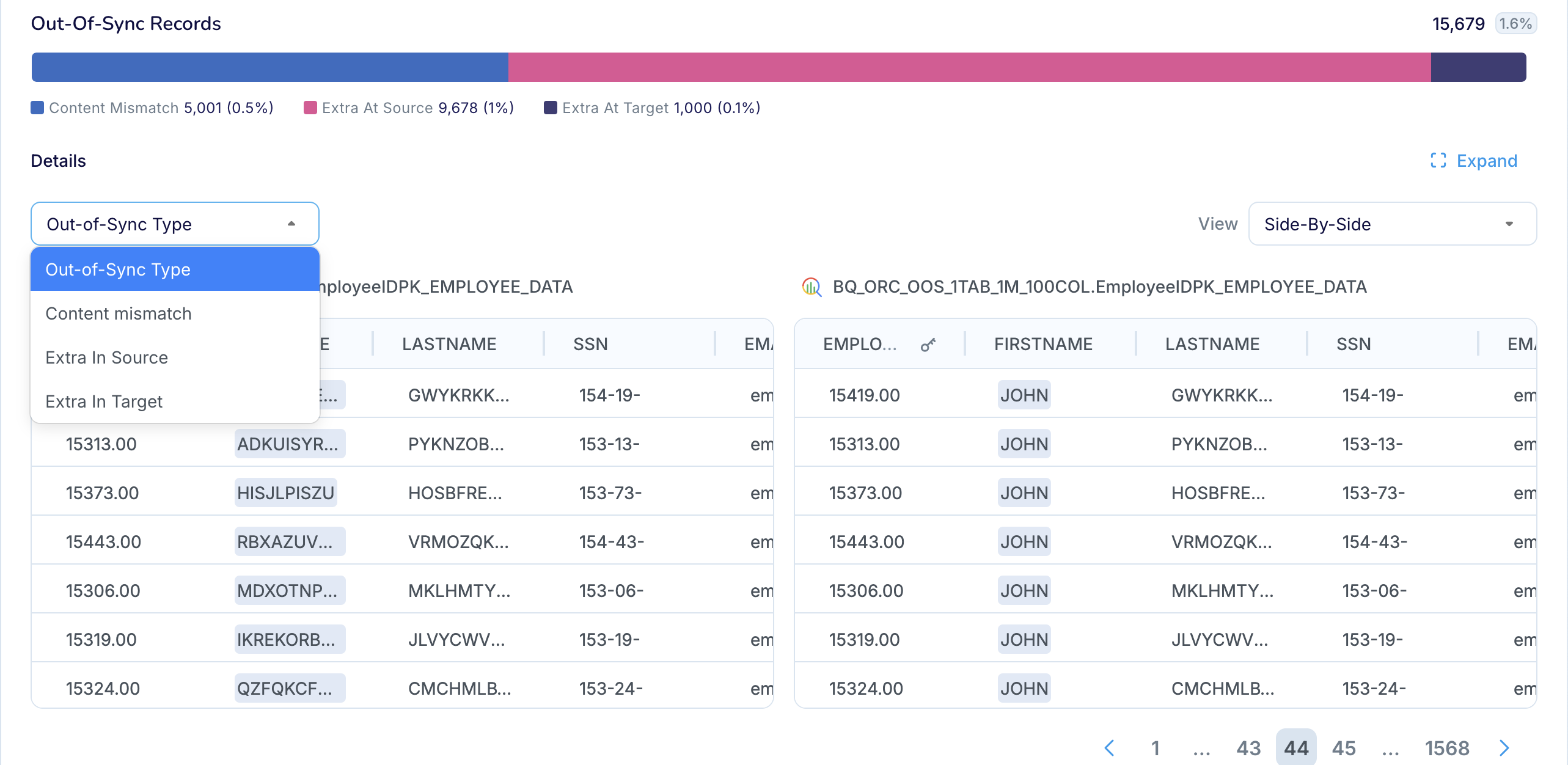
You can use the drop-down menu on the left to filter the Out-of-Sync results by category—Content Mismatch, Extra in Source, or Extra in Target.
In the first screenshot, the table displays
Content Mismatchrecords, with the specific fields that differ highlighted for clarity.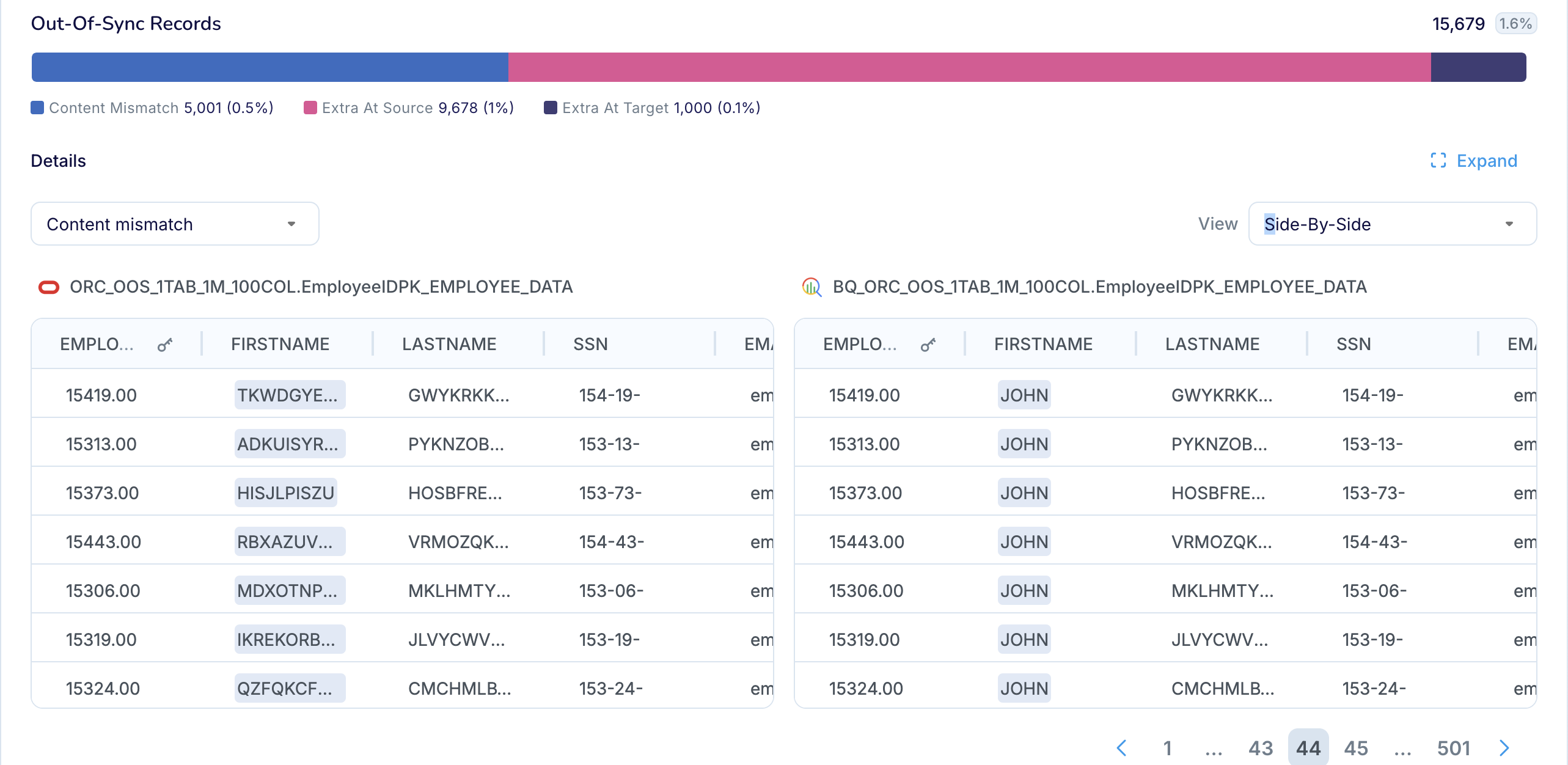
In the second screenshot, the table shows
Extra in Sourcerecords, where the corresponding target side appears as blank dashes to indicate that no matching target record exists.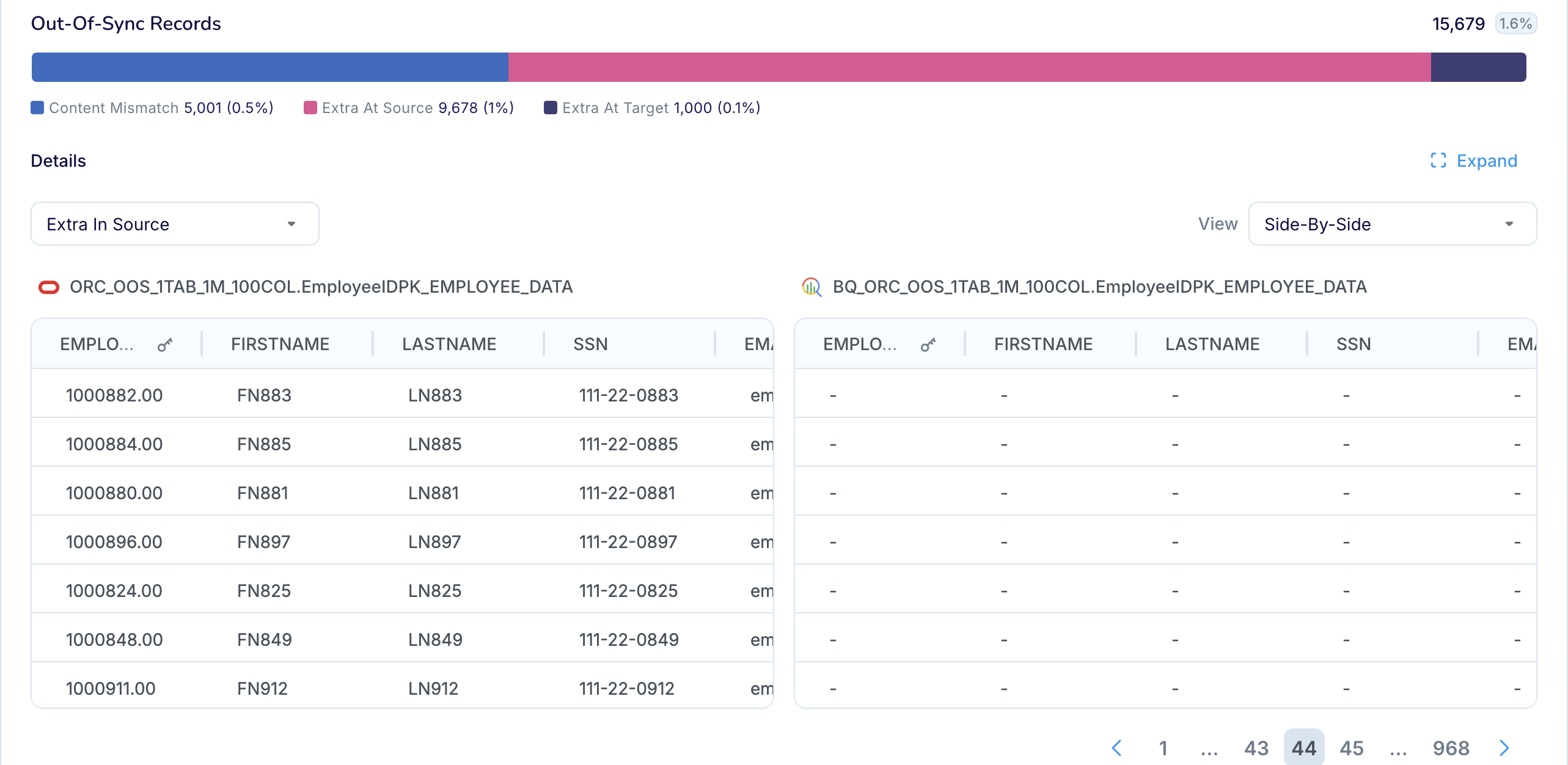
Trend analysis
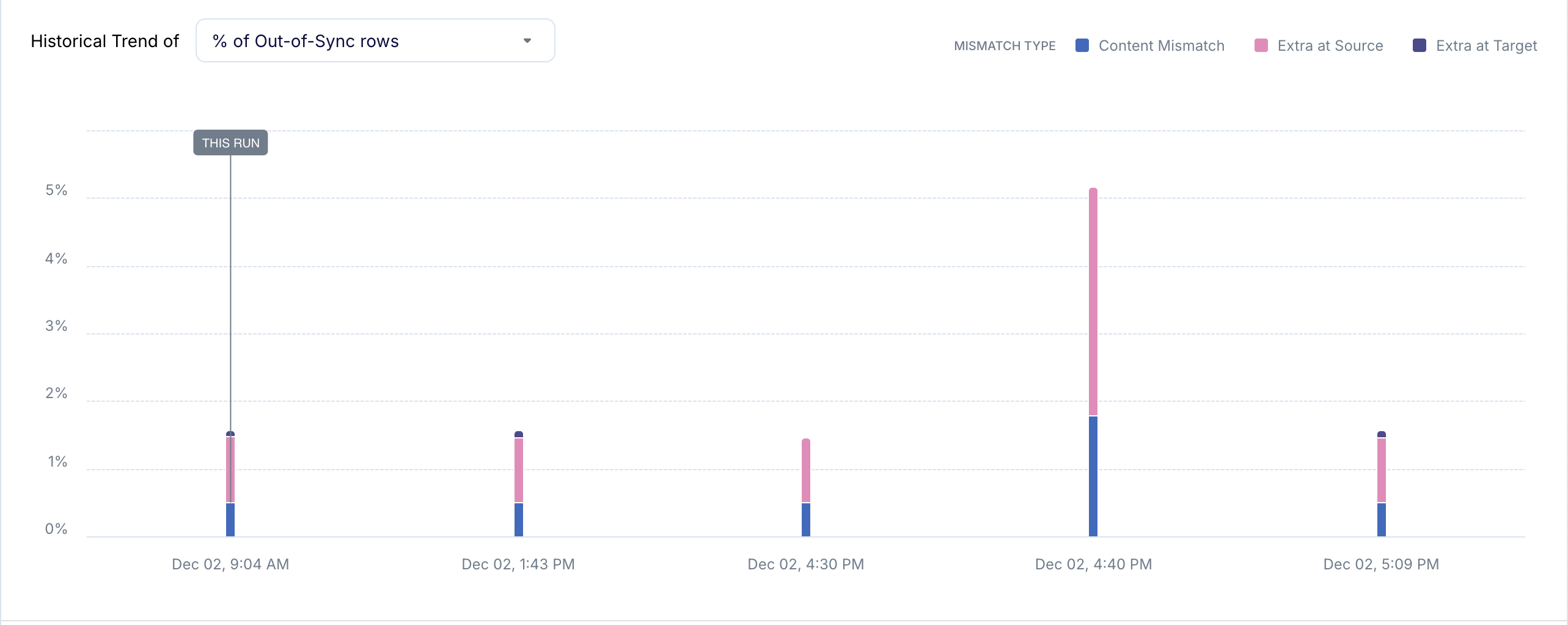
With each validation run, Validata builds a historical trend for the validation pair. By observing how out-of-sync and in-sync rates—and source and target record counts—change over time, you gain a clear view into replication consistency across runs and any emerging drift between the two systems. These trends help you distinguish one-off anomalies from recurring patterns, highlight regressions or improvements introduced by recent pipeline changes, and surface slow-moving issues that may not be obvious from individual run reports alone. Over time, this historical record becomes a valuable asset for continuous data quality monitoring and for demonstrating compliance during audits.
Run-time details
The run-time details table shows when Validata started and completed the comparison for the validation pair. If revalidation is enabled, the table also includes timing and status details for the revalidation phase.

As shown in the screenshot above, during revalidation, Validata detected that some records previously classified as Out-of-Sync had become In-Sync, indicating that those records were still in-flight during the initial comparison. As a result, the number of out-of-sync records decreased after revalidation completed.
If all records are in-sync at the end of the first phase of validation, then revalidation is not needed.
Records processed
If Validata detects duplicate comparison keys in a validation pair, it excludes all source and target records that share those duplicate key values from the comparison. You can review the list of duplicate keys in the downloadable JSON report, or download only the duplicates using the link above the Records Read table.

As shown in the screenshot above, the Records Read table displays the number of non-null records—including both duplicate and non-duplicate—that Validata read from each side. This helps you reconcile the record counts with your underlying data systems.
Null-key records—records that have null values in any of the columns that constitute the comparison key—are not included in the counts shown in the Records Read table. Validata filters out null-key records when it ingests data from the source and target tables.
Operational considerations
Keep the following considerations in mind when reviewing validation pair reports.
If the outcome of the validation pair comparison is
Halted, the number of source and target records processed and shown in the key metrics or the Records Read table may be less than the number of non-null source and target records.When you use Key Validation, Validata classifies any
Out-of-Syncrecords asExtra in SourceorExtra in Targetonly.Revalidation is not supported for Custom Validation.
If you enable revalidation for any of the built-in validation methods—Vector, Fast Record, Full Record, Key, or Interval—and all records are in-sync at the end of the first phase of validation, then the revalidation phase will not occur and the report will not show any revalidation metrics.