Validation Report
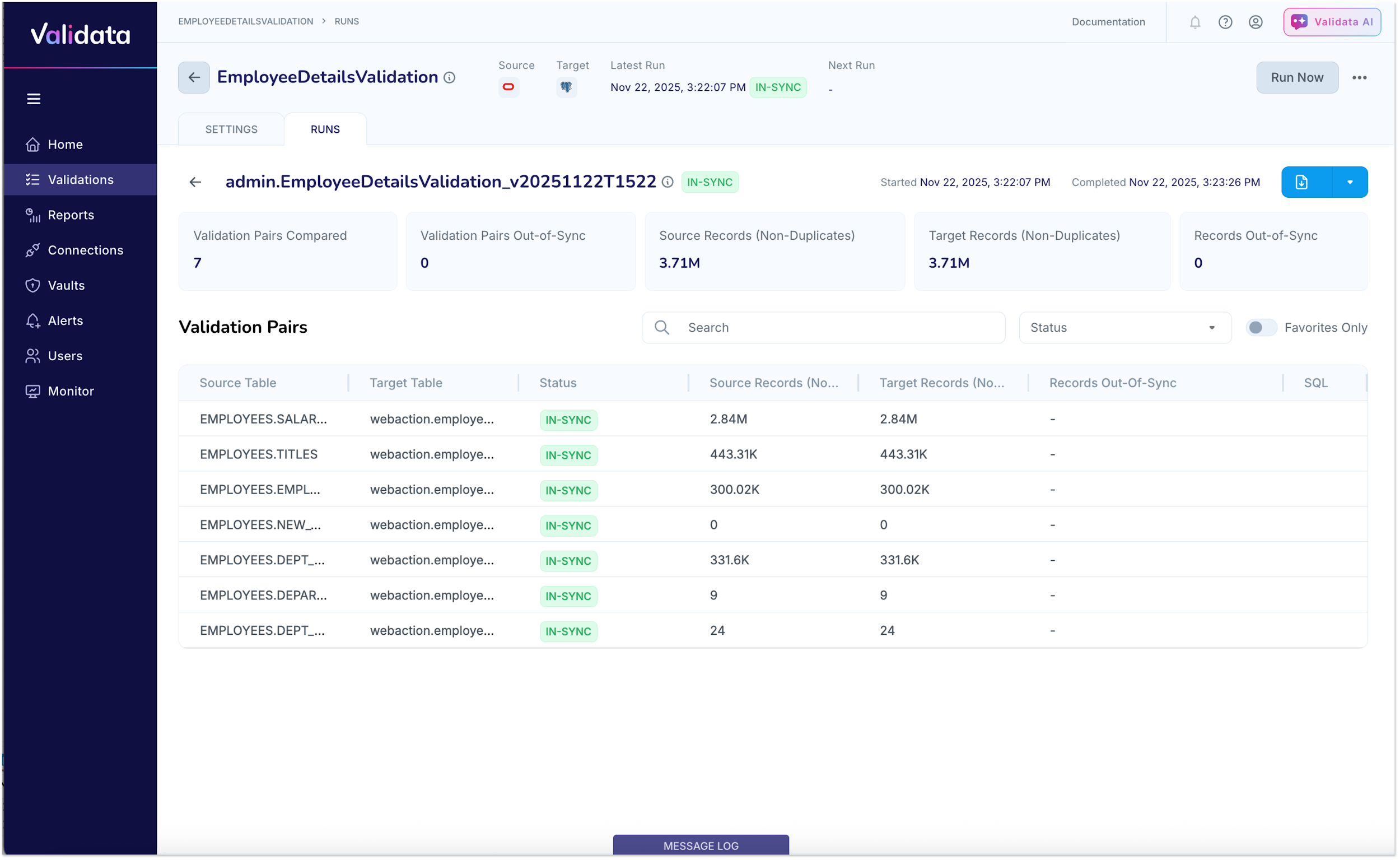
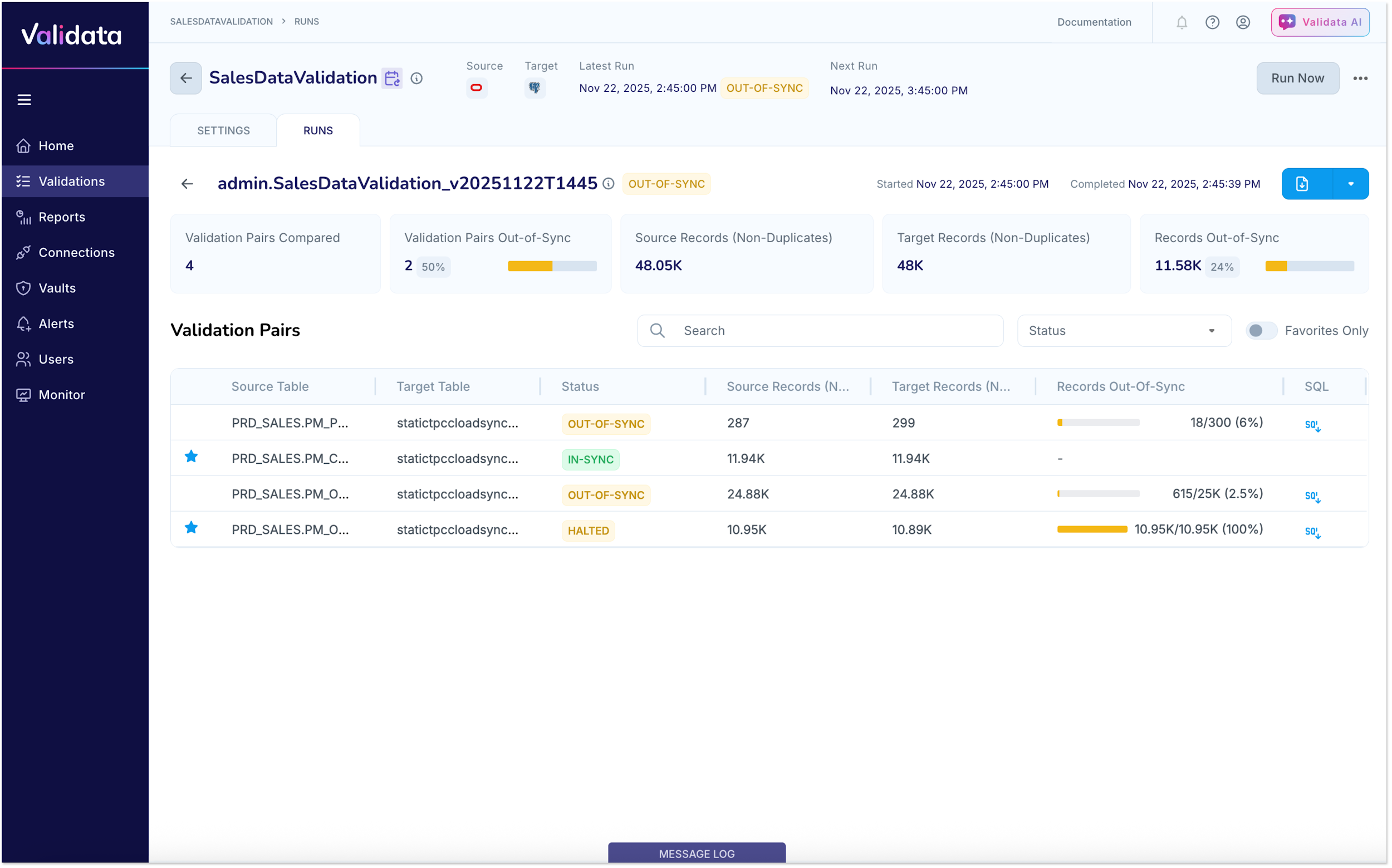
The Validation Report (a.k.a Validation Run Report or Validation Summary Report) provides a high-level overview of a specific run of a Validation. At a glance, you can determine the overall health of the run (In-Sync or Out-of-Sync), review aggregated metrics, and identify which specific tables require attention. The screen shots below show a Validation Report for a fully in-sync validation and a Validation with both In-Sync and Out-of-Sync tables respectively.
Run Header
Located at the top of the report, this section identifies the specific run instance with the overall run status (as shown in the screen capture below):
Run Name/ID: The unique identifier for this specific run (e.g., admin.SalesDataValidation_v2025...).
Status Badge: A visual indicator of the final result (e.g., a green IN-SYNC badge or a yellow OUT-OF-SYNC badge).
Timestamps: The exact Started and Completed dates and times for this run. They are useful for traceability and performance monitoring.
Download: A button to download the report summary and SQL script to fix Out-of-Sync records in target.
Validation Summary Cards
As shown in the screenshot, directly below the header, five summary cards provide a snapshot of the run's scope and results:

Metric Card | Description |
|---|---|
Validation Pairs Compared | The total number of table pairs that were validated in this run. This confirms the scope of the comparison |
Validation Pairs Out-of-Sync | The number of those table pairs that had any kind of mismatch or out-of-sync records. If this is zero, it means every table compared was fully in sync. |
Source Records (Non-Duplicates) | The total count of unique records read from the source system. |
Target Records (Non-Duplicates) | The total count of unique records read from the target system. Comparing this card with the source records card allows for a quick volume parity check. |
Records Out-of-Sync | The total number of records that differed between source and target across all table pairs in this run. This includes any type of discrepancy (extra or missing rows, or rows with differing values). |
Validation Pairs Table
The lower section of the report lists every Validation Pair included in the run with essential high-level comparison details. This table also allows you to open the Validation Pair Report to drill down from the high-level summary to specific table-level issues. You can use the Search bar, Status dropdown, or Favorites Only toggle to filter this list.
Column | Description |
|---|---|
Source Table | The name of the mapped table in the source system. |
Target Table | The name of the mapped table in the target system. |
Status | The comparison result for this pair: IN-SYNC (Green), OUT-OF-SYNC (Yellow), HALTED (Yellow), ERROR (Red) |
Source/Target Records | The individual record counts for the table on both sides. |
Records Out-Of-Sync | A visual horizontal bar chart accompanied by the specific count and percentage of discrepancies for that pair. |
SQL | A blue icon that allows you to download a generated SQL query to repair these specific out-of-sync records directly in your target database. |
You can quickly pinpoint problematic tables by sorting or filtering this list.
If a table shows IN-SYNC with 0 mismatches, the source and target were identical for this run.
If a table shows OUT-OF-SYNC, click on the table row to open the Validation Pair Report and drill down into the specific data discrepancies.
Additional Details for Validations Using Wildcard Mapping
If you configured the Validation using Wildcard selection, the Validation Report includes an additional section detailing how the wildcard patterns were applied during the run. This section highlights tables that were excluded, as well as any manual modifications to system generated mappings as shown in screenshot below.
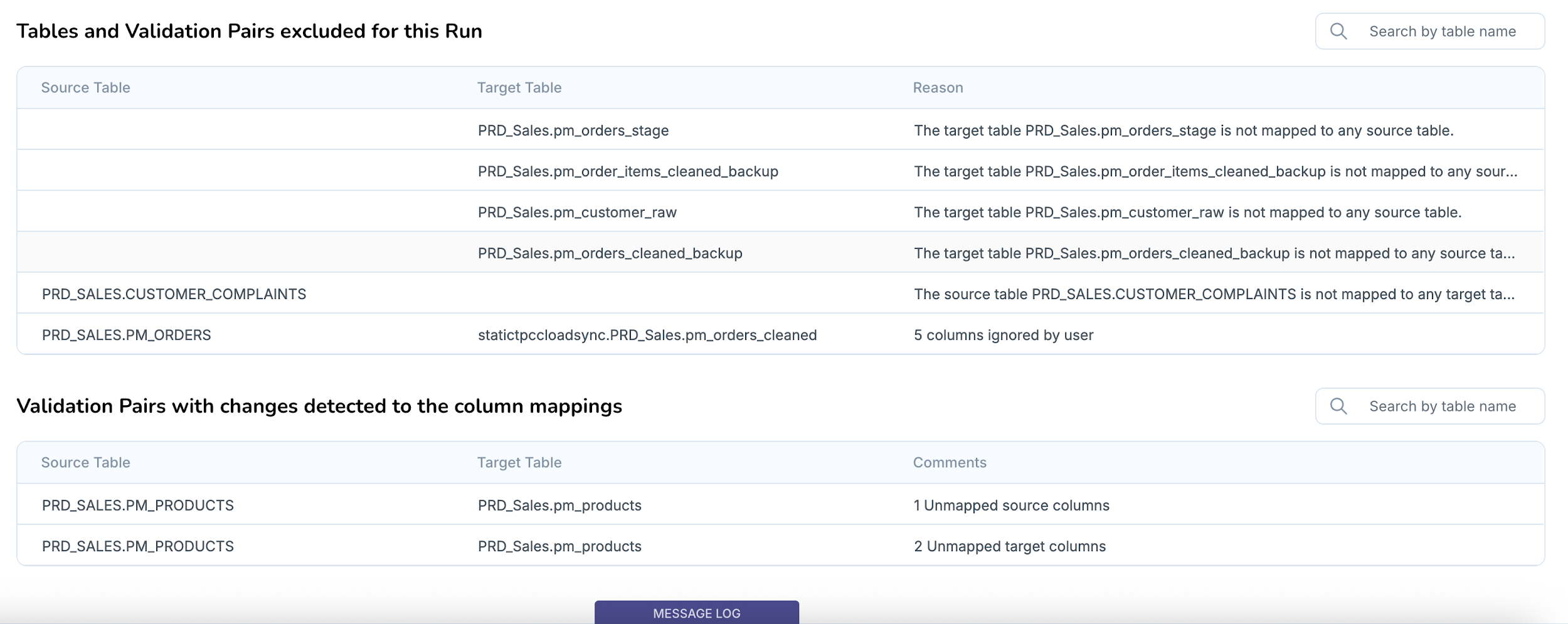
Tables and Validation Pairs Excluded for This Run: This section lists tables that matched the wildcard patterns but were not included in the Validation Run. Validata automatically attempts to automap matched tables into Validation Pairs; however, if it cannot automap a table (for example, if a corresponding target table is missing or if a valid Comparison Key cannot be determined), it reports those cases here. Reviewing this section helps ensure that your wildcard rules are capturing the intended scope and identifying why specific tables failed to automap.
Validation Pairs with Changes Detected to Column Mappings: This section identifies Validation Pairs where changes to the table structure or column mappings were detected since the previous run. Validata re-evaluates wildcard patterns at the start of every run to identify matching tables and columns. This section highlights instances where columns may have been unmapped, ignored due to unsupported data types, or modified, helping you identify schema drift or mismatches introduced by the dynamic wildcard selection.
Analyzing Validation Results from the Validation Report
The Validation Report helps you quickly determine whether a validation run completed successfully or requires follow-up. It summarizes the run status, highlights which table pairs are out-of-sync, and provides indicators that show the severity of mismatches. Using this report, you can immediately pinpoint problematic table pairs and decide the appropriate next steps—such as reviewing Validation Pair Reports, downloading reconciliation SQL, or initiating deeper data-quality diagnostics.
The beginning of the “Validation Report” section includes two sample Validation Reports. The examples below show how to interpret key metrics of what those two reports reveal about alignment between the source and target datasets.
Example: Run with IN-SYNC Result
The validation run is marked IN-SYNC, indicating that no discrepancies were detected.
The header displays the run’s start and end time, along with a status indicator confirming successful completion.
Summary metrics show that all table pairs were compared and none were flagged as out-of-sync.
Source and target record counts match, and no mismatches are reported.
The Validation Pairs table reinforces the result:
Every table pair is marked IN-SYNC
Record counts align across source and target
No mismatch bars or warnings appear
This run requires no further investigation.
Example: Run with OUT-OF-SYNC Result
The validation run is marked OUT-OF-SYNC, indicating that differences exist between the source and target.
The header and summary metrics highlight that some table pairs did not match and require attention.
The report shows that certain pairs contain data discrepancies or structural differences.
The Validation Pairs table provides additional insight:
One table pair shows a noticeable portion of records that do not align, indicated by a mismatch bar
Another pair is fully IN-SYNC
A different pair shows a smaller mismatch but is still flagged for review
One pair is marked HALTED, indicating that validation for that table did not complete
For each out-of-sync pair, an SQL download icon is available to retrieve a reconciliation script for detailed investigation.
This run indicates multiple areas of concern in the pipeline, making these pairs strong candidates for deeper analysis in the Validation Pair Reports.