Accessing Reports
After a Validation Run completes, you can access its reports through the Validata UI. If you initiate a One-time run or if a Recurring run is currently executing, you can monitor a live report that displays provisional metrics updating in real time (see Monitoring validation). When the run finishes, Validata finalizes the results and generates the complete set of reports.
Accessing the Validation Report
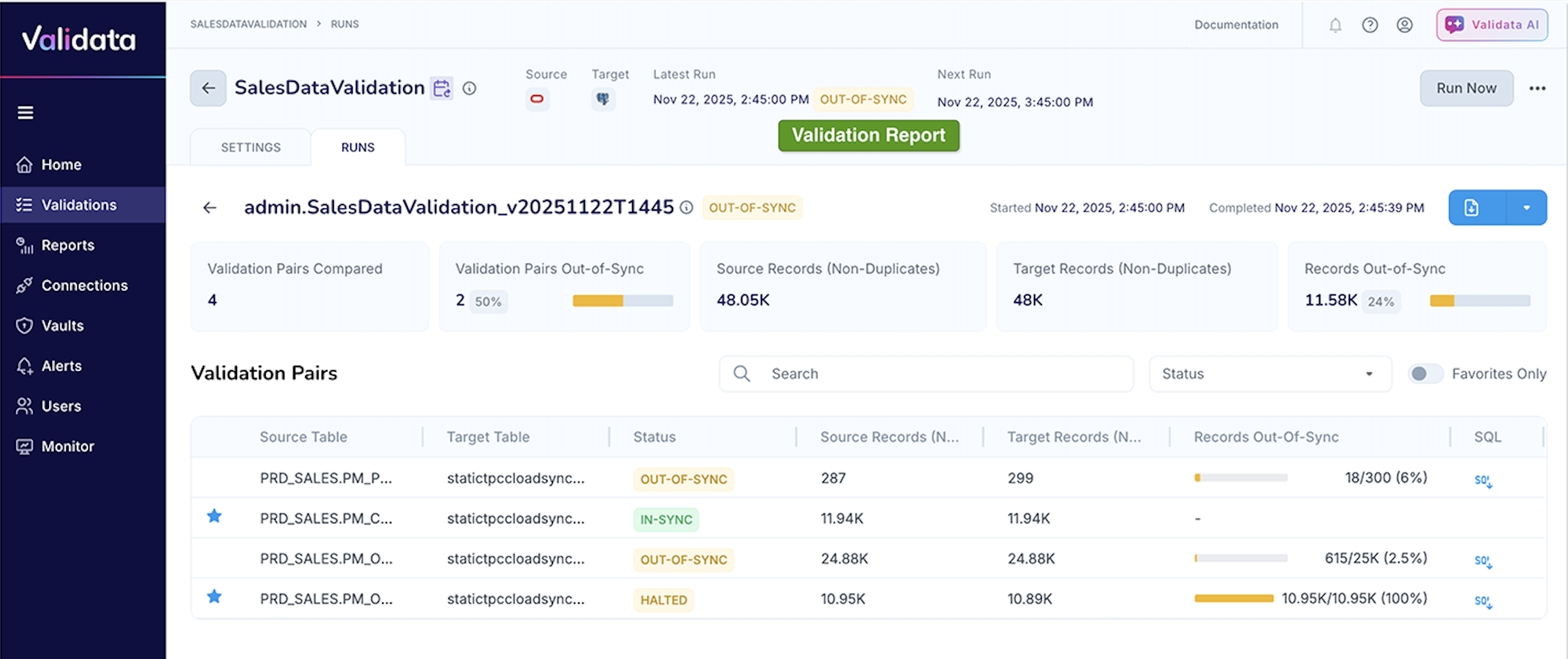
Validation Report (or Validation Run Report or Validation Summary Report) provides a high-level summary of the results for a single validation run, including overall metrics and the status of each validation pair. You can open a Validation Run Report using any of the following methods:
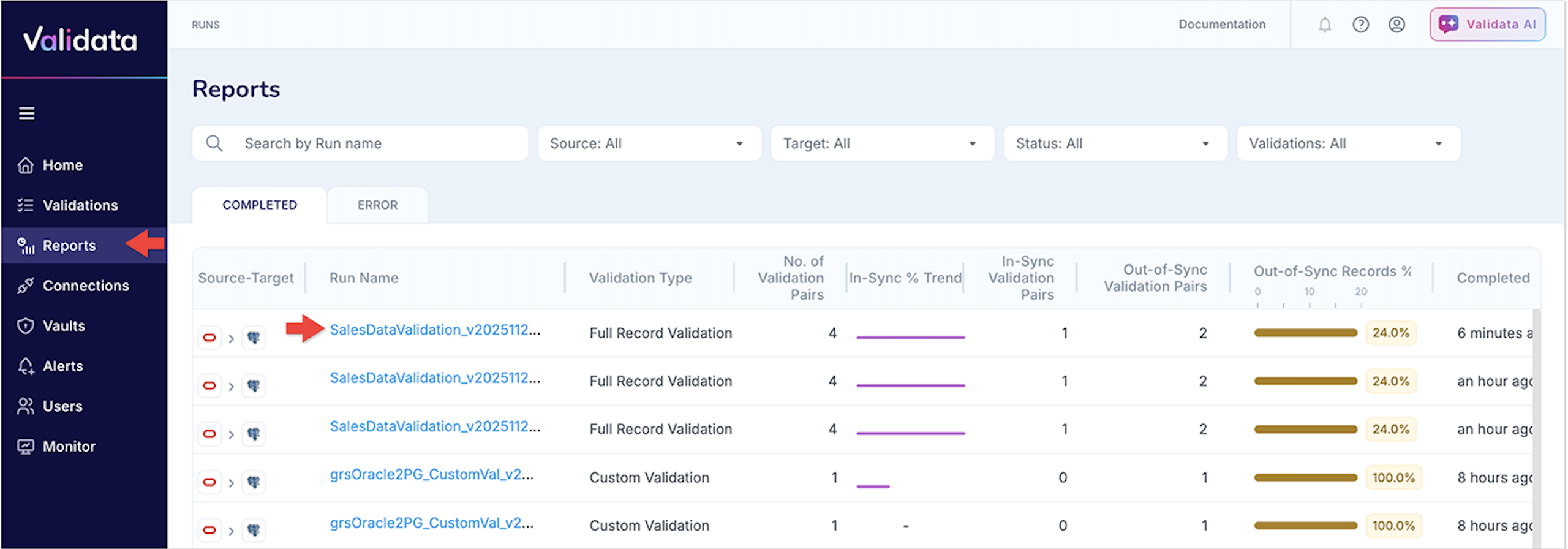
From the Reports list: Open the Reports list in the left navigation panel and select any completed Validation Run to go directly to its report as shown in the screenshots below.
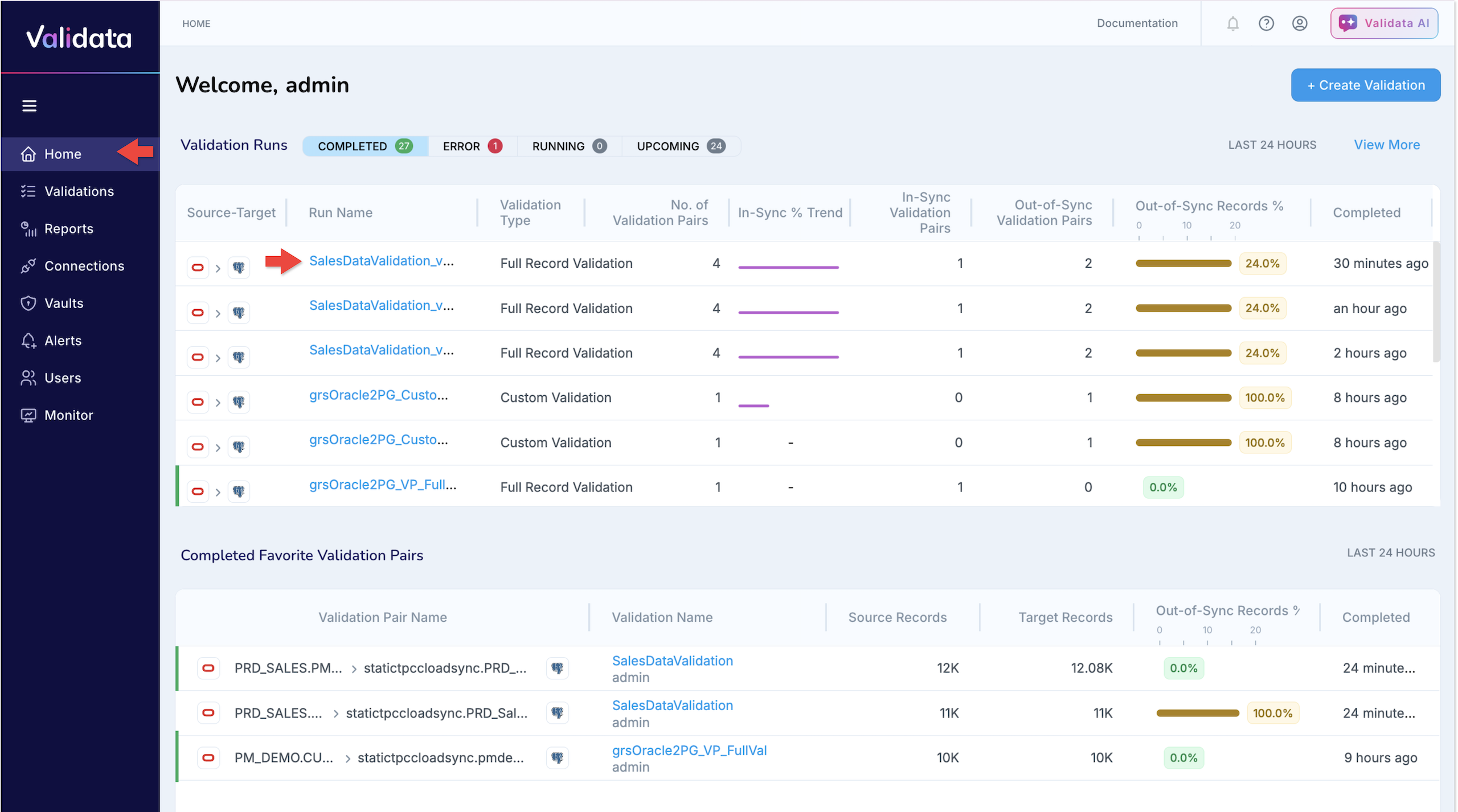
From the Validata Home Page: Validata Home is the default landing page when you open the Validata application, and it readily lists all validation runs completed in the last 24 hours for quick access. Select any run from this list to open its corresponding Validation Run Report.
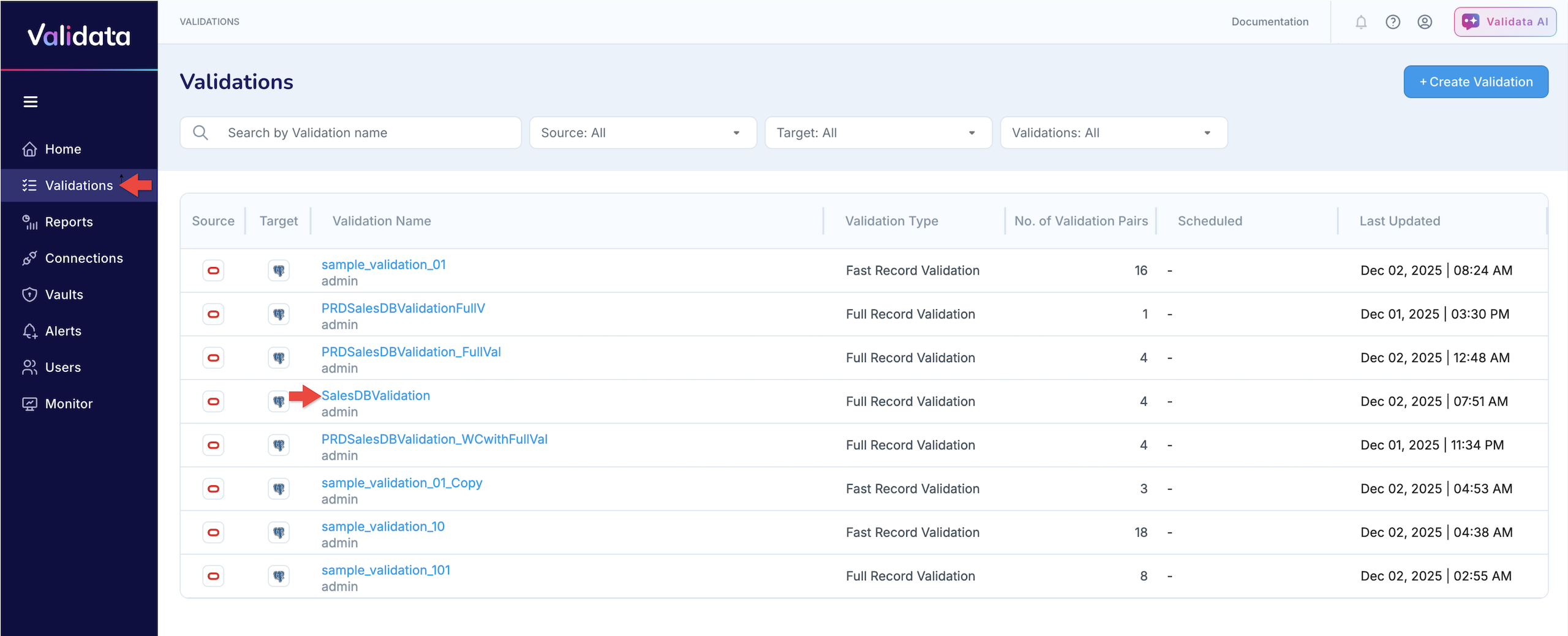
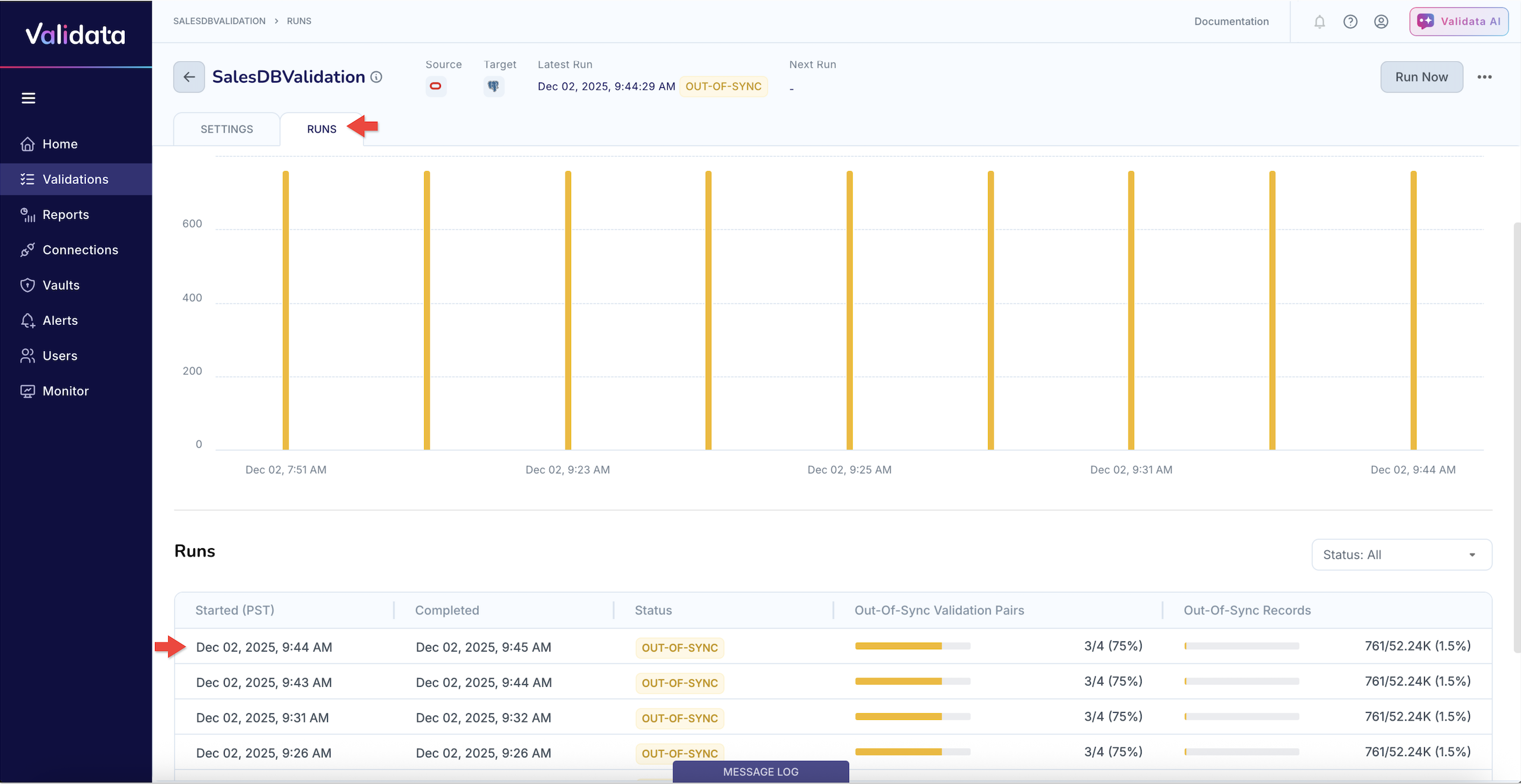
From the Validation Home Page: Select Validations from the left navigation panel, choose the Validation you want to inspect, and select any run to open its Validation Run Report.
Accessing the Validation Pair Report
You can open a Validation Pair Report using either of the following methods:
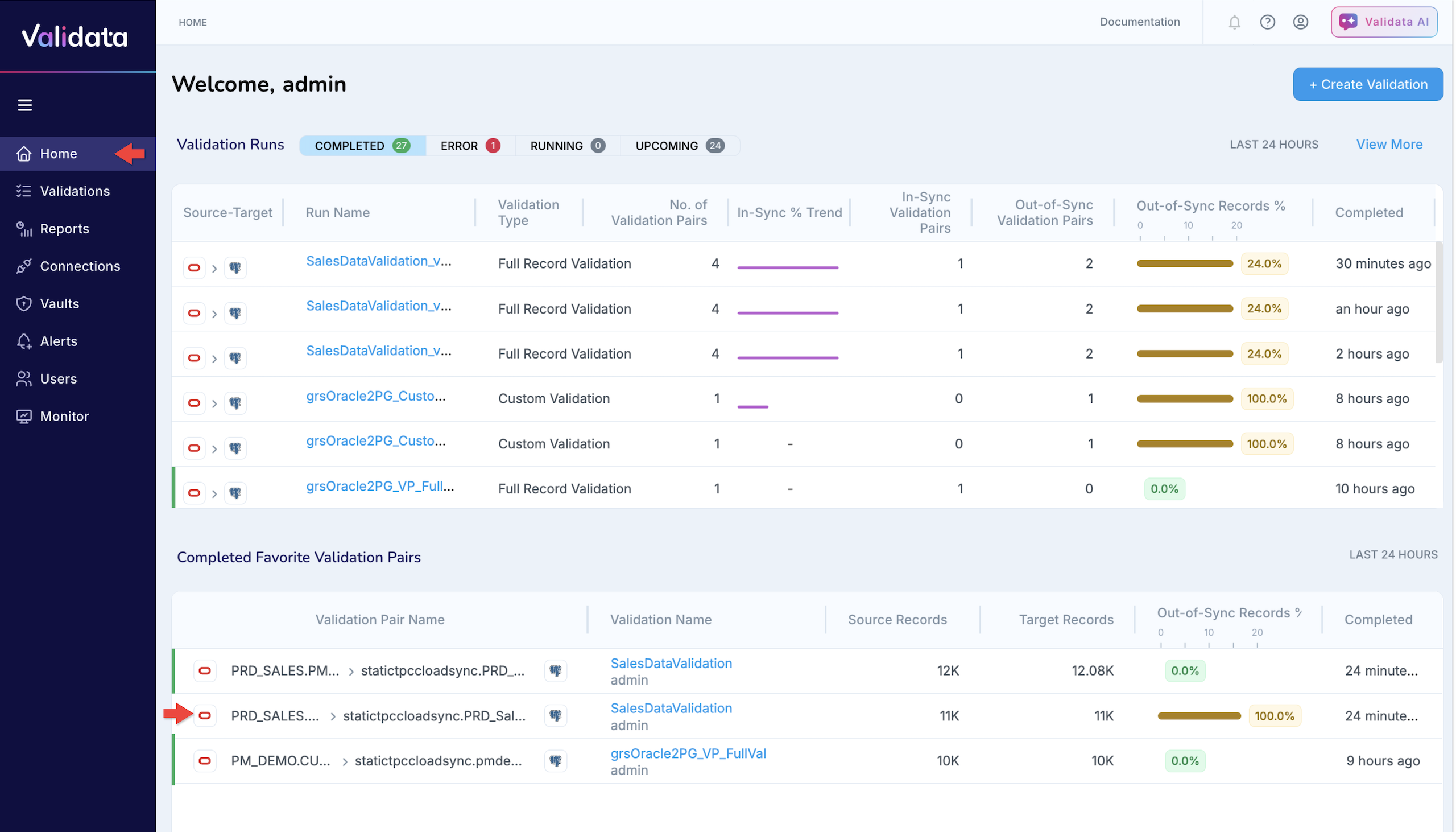
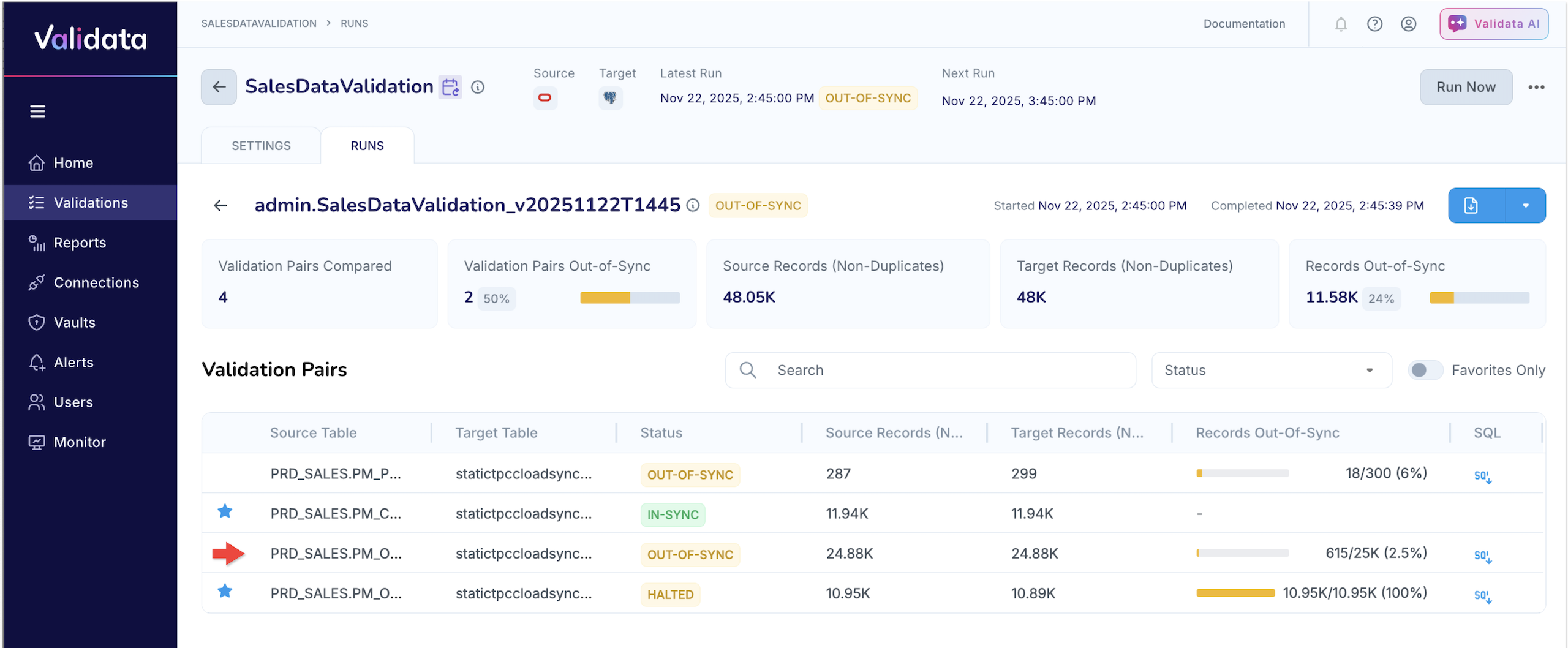
From the Validation Report: The Validation Report lists all validation pairs in a table, showing key metrics such as status, record counts, and out-of-sync percentages (as shown in the screenshot below). Click any validation pair in this table to open its Validation Pair Report, where you can view row-level comparisons, mismatch classifications, and detailed metrics.
From the Favorites in Validata Home: If you have marked specific Validation Pairs as Favorites (Favorite Table Pairs), you can open their Validation Pair Reports directly from the Validata Home Page as shown in the screenshot below, without navigating through an individual run.