Modifying an existing Validation
After creating a Validation, you may need to update its configuration—for example, update schedules, modify Validation Pair mappings or configurations, or modify other parameters. Validata allows modification at any time, and saved changes apply to subsequent Validation Runs; prior runs and their reports remain unchanged.
This section explains how to edit an existing Validation, what you can modify, and the conditions and considerations that apply when saving your changes.
Note
You cannot make changes to a Validation configuration when the Validation is running. While you are editing the configuration, neither you nor Validata can launch a new run of the Validation.
Editable attributes of an existing Validation
Once the Validation has been created, you cannot change its name, Source or Target definitions, validation scope or validation method.
You can modify the following attributes of a Validation configuration:
Advanced Settings:
You can make changes to any of the Advanced Settings for the Validation configuration: Stopping a Validation Pair comparison early, Revalidation, and the Validation Schedule.
For example, you can change the Schedule from One-time run to Recurring run, or disable Revalidation.
Validation Method settings:
If you chose the Interval Validation method, you can update the definitions of the Absolute or Relative time windows.
If you chose the Custom Validation method, you can modify the Source and Target queries or update the comparison key.
Validation Pair mappings:
If you used the Quick Start (Validation Pair) scope with any built-in validation method—Vector, Fast Record, Full Record, Key or Interval—you can update the Validation Pair by modifying the Source or Target tables names.
If you used the Quick Start (Validation Pair) scope with the Custom Validation method, you can update the Validation Pair by adjusting the Source and/or Target queries.
If you used the Validation Set scope and manually selected the Validation Pairs, you can modify the schemas and Validation Pair mappings.
If you used the Validation Set scope and selected the Validation Pairs using wildcards, you can update the wildcard rules and select or deselect Validation Pairs for comparison.
Validation Pair configuration:
You can modify the configuration of any Validation Pair by adjusting its column mappings, changing which column pairs are compared, and updating the comparison key.
When making changes, ensure that the Validation Pair configurations—specifically, the column mappings and the comparison key—are compatible with the chosen validation method.
Note: The Validation Pair configuration is not available for the Custom Validation method because the configuration is implicitly defined by the positions of the columns in the Source and Target query results. .
Accessing a Validation for Editing
To edit a Validation:
Open the Validations page from the left navigation menu.
Select the Validation you want to modify. The Validation opens to the Runs tab by default.
Switch to the Settings tab to view and edit the Validation configuration.
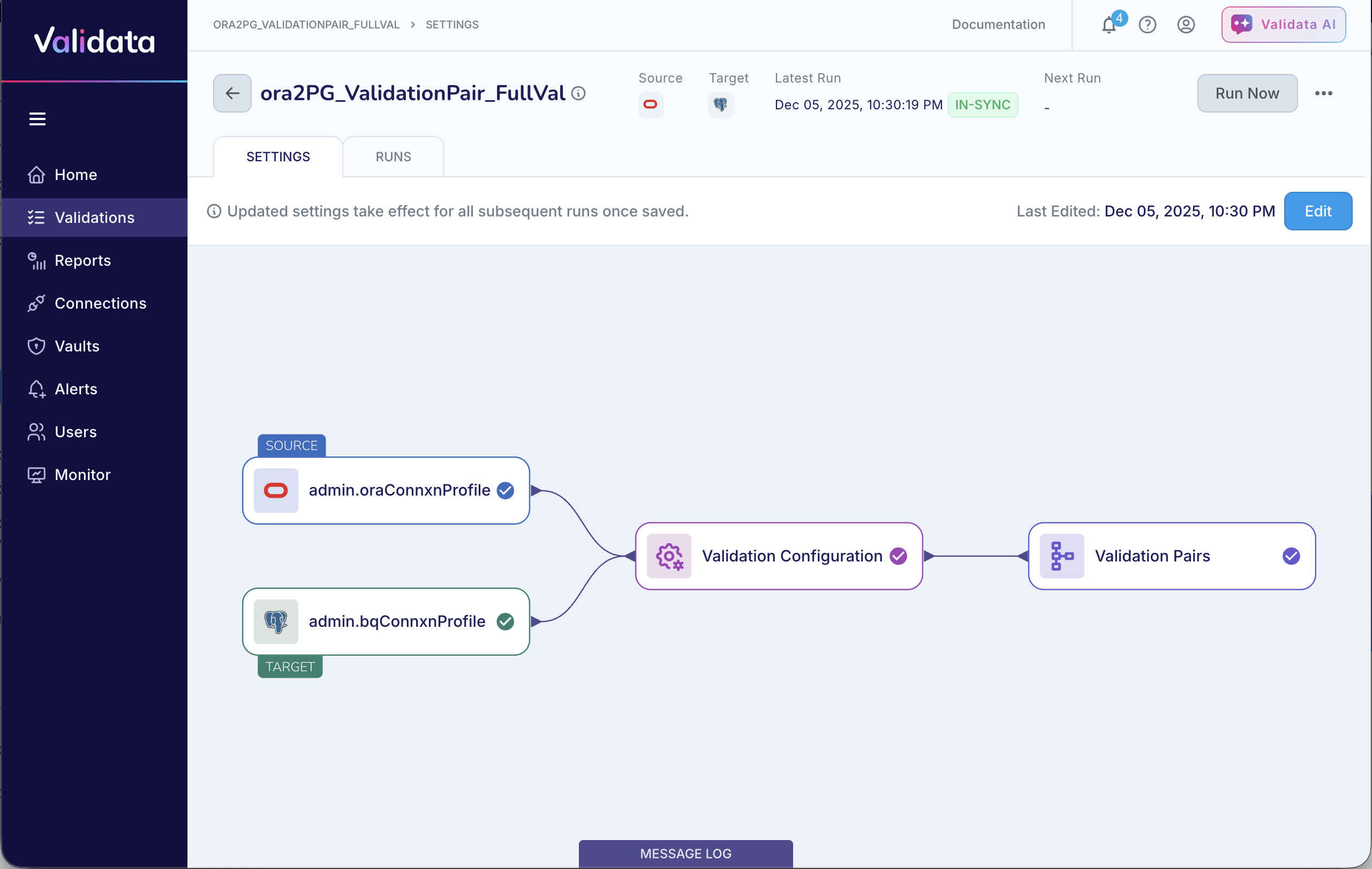
Click any box in the SETTINGS map to view the current configuration settings. These views are read-only.
In the screenshot below, we clicked the Validation Pairs box to view the pairs selected for comparison in this configuration
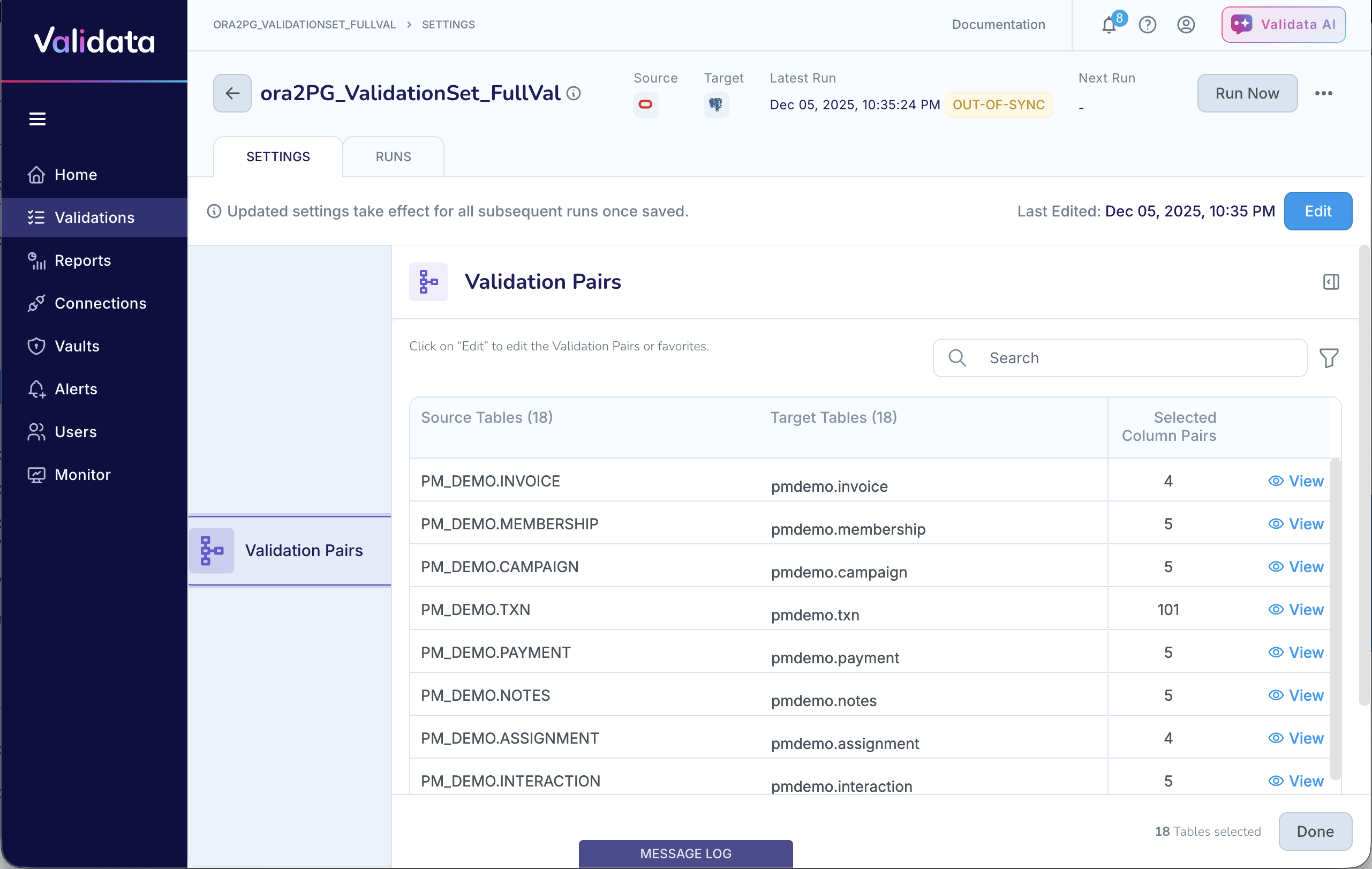
If the Validation is not currently running, you can click Edit to modify the Validation configuration.
If you used the Quick Start (Validation Pair) scope for your Validation, you will be taken to the Manage Validation Pair page.
If you chose the Validation Set scope, you will be taken to the Manage Validation Pairs page that lists all Pairs—whether currently selected or not—in your configuration.
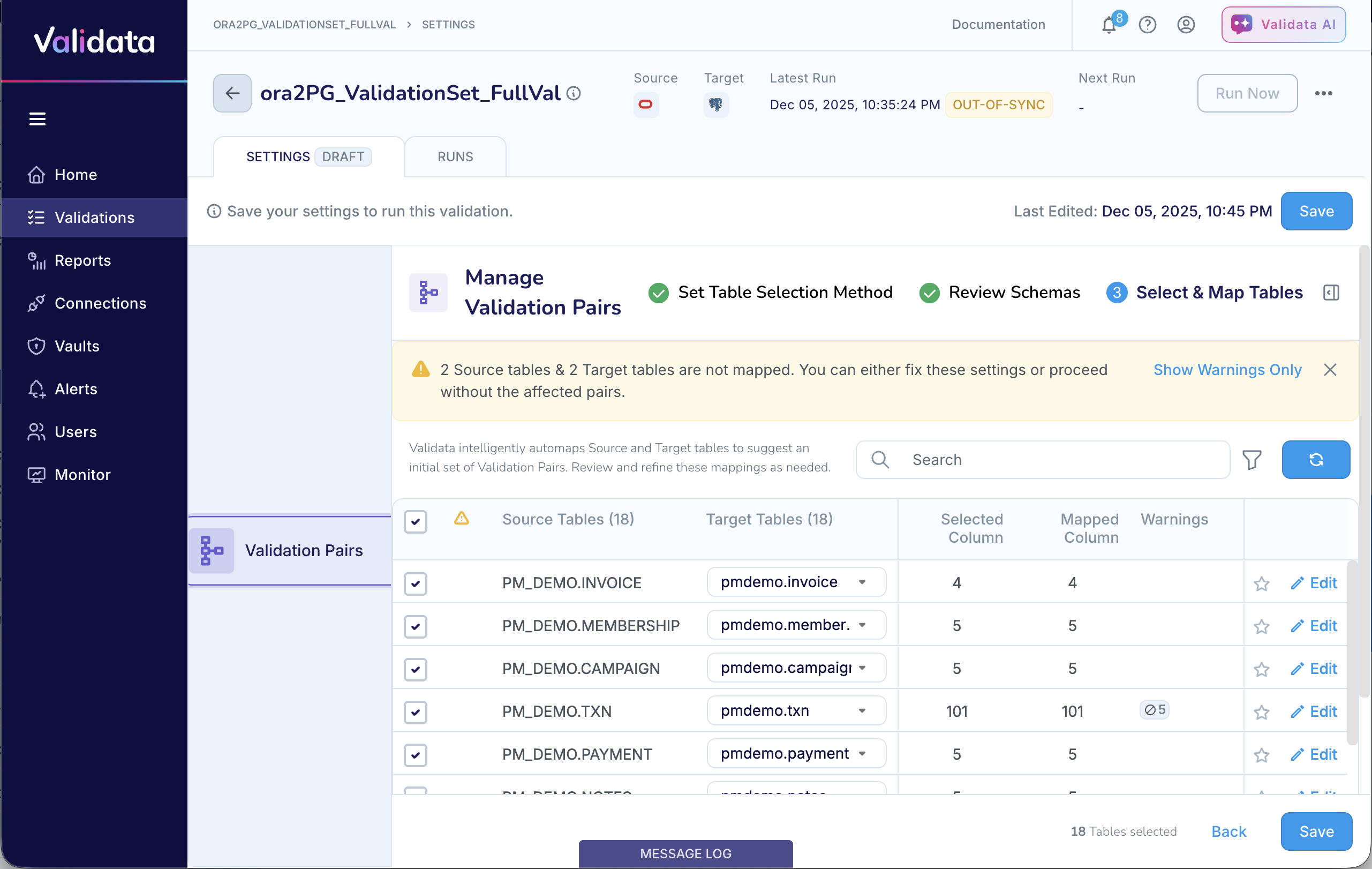
The SETTINGS tab displays a
DRAFTlabel from the moment you begin editing and continues to show it until you save the configurationAfter you complete your edits:
Review your updates in the Settings tab.
Click Save. Validata verifies the configuration and applies the changes.
If Validata detects any issues, it alerts you and prevents you from saving the configuration until you resolve all issues.
If Validata does not detect any issues, it saves the Validation.
A green confirmation banner appears indicating that the settings are saved successfully.
The DRAFT label is no longer shown on the SETTINGS tab.
You can now launch a Validation Run. Additionally, Validata can now launch scheduled runs of this Validation.