Configuring Validata AI
This topic describes how to configure and launch Validata AI. Validata AI is an AI-powered assistant that runs locally and connects to either cloud-based AI providers or a local/remote self-hosted Ollama server for AI processing.
Prerequisites
Validata AI can be configured from the Validata UI. You can either use Get Started with Validata AI on the landing page, or select the Validata AI at the top right.
Before configuring Validata AI, ensure the following requirements are met:
Docker and Docker Compose installed on the server where Validata is running.
Inbound ports 9090 and 8001 must be open on the Validata server to allow access to the Validata AI interface and API.
Administrator-level access to the Validata server.
For cloud LLM configuration: an API key from your chosen provider (OpenAI or Google Gemini).
For Ollama configuration: access to an Ollama server with the gpt-oss:20b model installed.
For Ollama configuration: the Ollama server must meet the hardware requirements described in System requirements.
Note
Validata AI Docker containers run on the same machine as the Validata server. Remote deployment of Validata AI containers is not currently supported.
AI provider options
Validata AI supports multiple AI providers. Select the option that best meets your requirements for capability, cost, latency, and privacy:
Provider | Requirements | Notes |
|---|---|---|
OpenAI | API key required | Cloud-based; requires outbound internet connectivity. |
Google Gemini | API key required | Cloud-based; requires outbound internet connectivity. |
Ollama | Ollama server (local or remote) | Runs locally or on a remote server within your network. No API key required. All data processing remains within your infrastructure. |
Note
To integrate with additional AI providers not listed above, contact Striim Support.
Configuring Validata AI
To configure Validata AI:
Log in to Validata with administrator credentials.
Select Get Started with Validata AI, or select Validata AI at the top right.
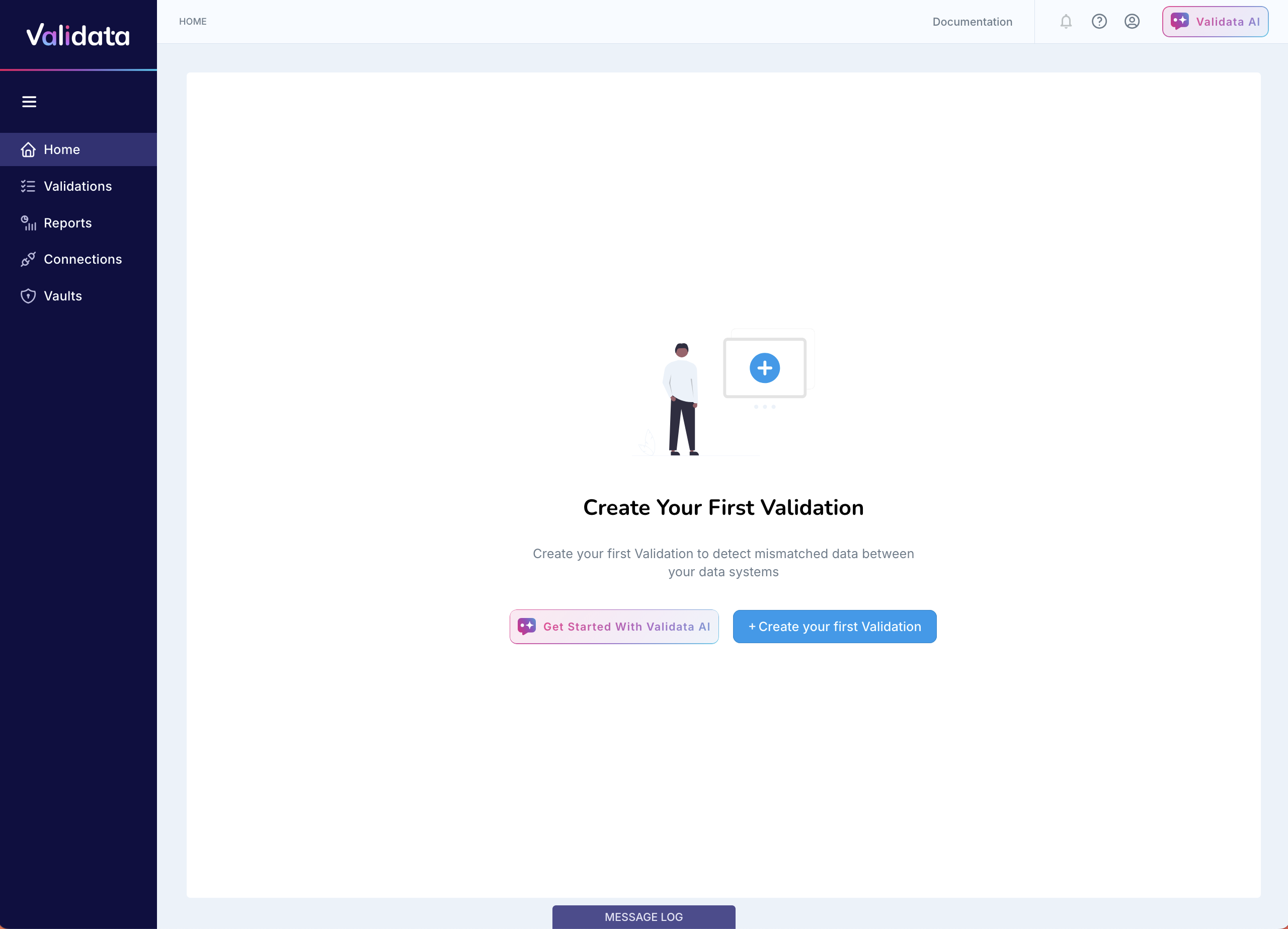
Select your AI provider configuration option:
Configuring cloud LLM
To configure Validata AI with a cloud-based AI provider:
Select Launch Validata AI using a cloud based LLM.
From the Provider dropdown, select your AI provider (OpenAI or Google Gemini).
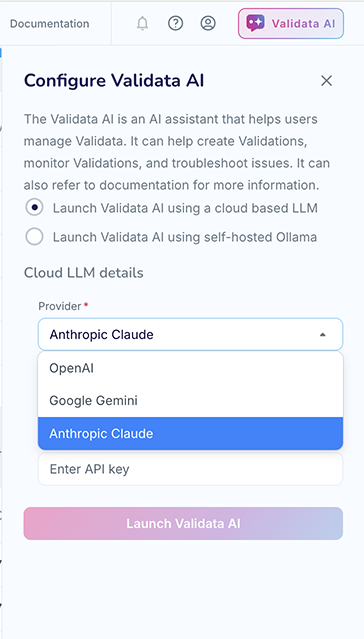
Enter the Model Name for your selected provider. For example:
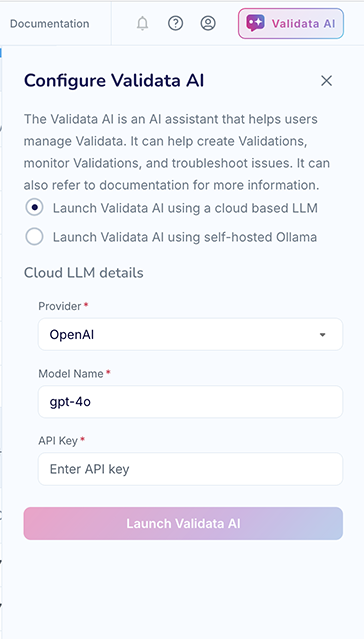
Enter your API Key.
The following table shows example model names for each provider:
Provider | Example model name |
|---|---|
OpenAI | gpt-4o |
Google Gemini | gemini-2.5-flash |
Important
Handle API keys with the same confidentiality as passwords. Do not share them or commit them to version control systems. All API keys are stored encrypted using AES-256 encryption in Validata Historian.
Configuring Ollama
Validata AI supports two Ollama deployment options: local Ollama (running on the same machine as Validata) or remote Ollama (running on a separate server within your network).
Configuring local Ollama
To configure Validata AI with Ollama running locally:
Select Launch Validata AI using self-hosted Ollama.
Select Launch Ollama Locally.
Validata automatically sets the Ollama Server URL to http://host.docker.internal:11434.
Configuring remote Ollama
For advanced deployments, you can run Ollama on a dedicated remote server and configure Validata AI to connect to it.
To set up a remote Ollama server:
Install Ollama on the server:
curl -fsSL https://ollama.com/install.sh | sh
Create or edit the Ollama systemd service file:
sudo vim /etc/systemd/system/ollama.service
Add the following content to the service file:
[Unit]
Description=Ollama Service
After=network-online.target

[Service]
ExecStart=/usr/local/bin/ollama serve
User=ollama
Group=ollama
Restart=always
RestartSec=3
Environment="PATH=/usr/local/sbin:/usr/local/bin:/usr/sbin:/usr/bin:/sbin:/bin:/usr/games:/usr/local/games:/snap/bin"
Environment="OLLAMA_HOST=0.0.0.0:11434"

[Install]
WantedBy=multi-user.target
Reload systemd and restart the Ollama service:
sudo systemctl daemon-reload
sudo systemctl restart ollama
Verify that the service is running:
sudo systemctl status ollama
Expected output:
● ollama.service - Ollama Service
     Loaded: loaded (/etc/systemd/system/ollama.service; enabled)
     Active: active (running)
     Main PID: 21034 (ollama)
     Memory: 10.8M
     CPU: 3.7s
The logs should also indicate that Ollama is listening on port 11434:
Listening on [::]:11434 (version 0.13.0)
discovering available GPUs...
starting runner
Download the required model:
ollama pull gpt-oss:20b
Verify that Ollama is listening on port 11434:
ss -antp | grep :11434
To configure Validata AI to use the remote Ollama server:
Select Launch Validata AI using self-hosted Ollama.
Select Use existing Ollama installation.
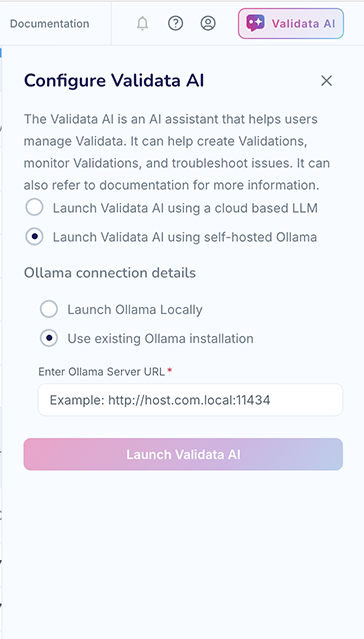
Enter the Ollama Server URL in the format
http://<server-ip>:11434.
For example: http://192.168.1.100:11434
Warning
By default, Ollama doesn't include authentication. Striim recommends the following security practices for secure Ollama deployment:
Network isolation — Expose Ollama only on your internal network. Never expose it to the internet.
Firewall rules — Restrict access to specific IP addresses or subnets.
Launching Validata AI
After completing the configuration, select Launch AI Agent to start the service.
The system performs the following actions:
Validates the configuration parameters.
Downloads (if needed) and starts the required Docker containers.
Initializes the Validata AI Agent, and AI Store.
Makes Validata AI accessible in the Validata UI.
Once launched, you can access Validata AI from the Validata UI. See Validata AI for usage instructions.
Troubleshooting
This section describes common issues and their resolutions.
Configuration issues
Issue | Resolution |
|---|---|
Invalid API key error | Re-enter the API key and verify that the key has the required permissions and quotas on the provider's platform. |
Docker not operational | Confirm that Docker Engine and Docker Compose are installed and running on the Validata server. |
Port conflicts | Ensure that ports 9090 (AI Server), 8001 (AI Agent), and 6333 (AI Store) are not in use by other processes. |
Ollama-specific issues
Issue | Resolution |
|---|---|
Model not found error | Run |
Connection refused error | Verify that the Ollama service is running and accessible at the configured URL. Check firewall rules and network connectivity. |
Security considerations
Follow these security best practices when configuring Validata AI:
API keys are encrypted at rest using AES-256 encryption and are never displayed in plain text after initial entry.
Only users with administrator privileges can modify Validata AI configuration settings.
When using Ollama, all prompts and data remain within your organizational infrastructure.
When using cloud LLM providers, review the provider's Terms of Service regarding data privacy, data retention, and usage policies.
For remote Ollama deployments, restrict network access to trusted IP addresses and subnets.