Configure Slack alerts
Before Slack can receive alerts from Validata, you must create and install a Slack app.
Configure Slack to receive alerts from Validata
Log in to https://api.slack.com/
Select Create New App → From scratch
Provide an App Name and choose a workspace
Navigate to OAuth & Permissions
Configure the following scopes:
bot token scopes:
chat:write
chat:write.public
user token scopes:
chat:write
Under Settings, click Install App and then click Allow
Copy and store the generated OAuth Access Token securely
(Optional, Recommended) Enable refresh tokens in Validata for authentication renewal
Configure Validata to send Slack alerts
Select Alerts, select Slack as the channel, and click Configure Slack.
Provide the required configuration details.
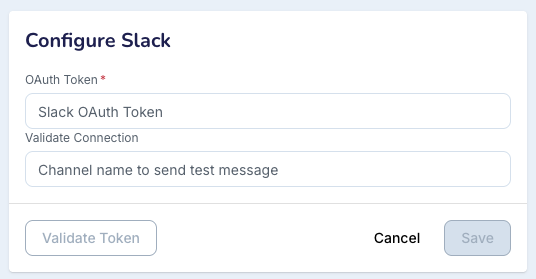
Click Validate Token to verify the configuration.
If the test is successful, click Save.
Click Edit Configuration.
Add the Recipient Slack Channel Name.
Click Save.
You can see the result "Recipient Slack Channel Name" SUCCESS.
Once configured, alerts will begin appearing in the specified Slack channel.