Single Sign-On with Ping Identity
What is Ping SSO?
Striim supports SAML 2.0 Single Sign-On (SSO) with Microsoft Entra ID and Okta, and now also with Ping Identity (PingOne and PingFederate) as a third supported Identity Provider (IdP).
In this integration, the roles are:
Striim acts as the Service Provider (SP).
Ping Identity acts as the Identity Provider (IdP). Ping authenticates the user against its configured user directory (for example, LDAP or Active Directory) and returns a signed SAML Response to Striim.
The supported flow is SP-initiated SSO: Striim always starts the authentication request.
Why use Ping SSO?
Centralized authentication — users sign in with their corporate credentials; passwords are never stored or validated by Striim.
Automatic user provisioning — Striim creates an SSO user account automatically on a user's first login, reducing administrative overhead.
Enterprise directory integration — Ping authenticates against your existing LDAP or Active Directory, so access control follows your directory.
Security and compliance — signed SAML Responses (and optionally signed AuthnRequests for PingFederate) provide cryptographic trust in both directions of the exchange.
Use cases
Organizations standardized on Ping Identity (PingOne or PingFederate) as their corporate IdP who want Striim access governed by the same identity platform.
Enterprises with strict security policies that require the SP to sign its outbound SAML AuthnRequest (supported for PingFederate; see Signed AuthnRequest support (PingFederate)).
Teams that want zero-touch onboarding of Striim users: any user Ping can authenticate is provisioned in Striim on first login.
How the SAML flow works
When a user logs in through SSO, the following sequence takes place:
The user clicks on the Striim login page.
Striim builds a SAML AuthnRequest.
Striim redirects the user's browser to Ping's SSO endpoint.
Ping authenticates the user against its configured user directory, such as LDAP or Active Directory.
Ping builds a signed SAML Response containing the user's attributes.
Ping POSTs the SAML Response back to Striim through the user's browser.
Striim validates the response.
Striim extracts the user's identity.
Striim creates the user account if this is the user's first login.
Striim redirects the user to the landing page.
AuthnRequest: Striim to Ping
Striim builds the AuthnRequest using two values from its SSO configuration:
Field | Description |
Entity ID | Identifies Striim as the Service Provider. This must match exactly with the value registered in Ping. |
SSO Service URL | The Ping IdP endpoint where Striim sends the authentication request. |
The AuthnRequest is compressed, base64-encoded, and sent as a query parameter in a browser redirect. (When SP request signing is enabled for PingFederate, the signed request is instead sent base64-encoded without compression via an HTTP-POST auto-submit form; see Signed AuthnRequest support (PingFederate).)
SAML Response: Ping to Striim
Ping POSTs the signed SAML Response to Striim's Assertion Consumer Service (ACS) URL:
https://<striim-host>:<port>/saml
After receiving the response, Striim validates the SAML signature certificate against the Ping certificate configured on the Striim server. If the certificate does not match, login is rejected.
Note
Striim supports both assertion-level signatures (commonly used by PingOne) and response-level signatures (commonly used by PingFederate).
Striim then extracts the required user attributes from the SAML assertion:
First name
Last name
Email
If any required attribute is missing, login fails.
User provisioning
After validation succeeds, Striim looks up the user by email address. If the user does not already exist, Striim automatically creates a new SSO user account using the username pattern:
firstName_lastNameUUID
On later logins, Striim reuses the existing account and does not create a duplicate user.
Configuration
Configuring Ping SSO in Striim
The Striim admin configures Ping SSO by providing the following fields:
Field | Description |
Identity Provider | Select PingFederate. |
Entity ID | The SP Entity ID registered in Ping. This must match exactly on both sides. |
SSO Service URL | The Ping IdP SSO endpoint URL. |
Select Certificate Path | Select the Ping signing certificate file on the Striim server. The certificate must be accessible to the Striim process. Supported formats are |
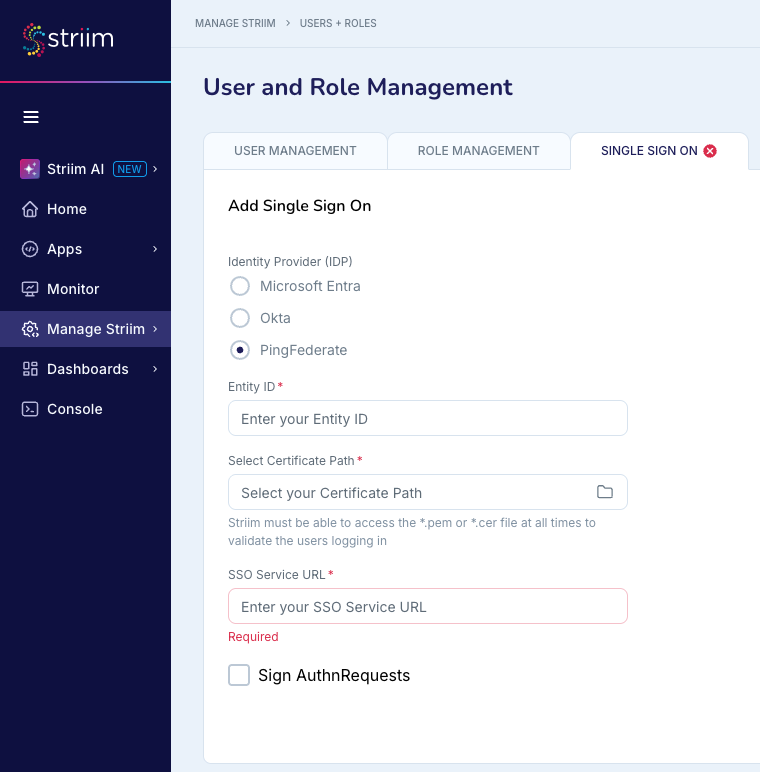
These values are stored in Striim's internal vault and read at login time.
Warning
The certificate file must remain accessible to the Striim process at all times. If the certificate file is moved or deleted, SSO logins will fail.
Supported attribute names
Ping follows LDAP standard attribute naming conventions, which differ from Azure and Okta. Striim accepts the following attribute names from Ping:
Field | Accepted attribute names |
First Name |
|
Last Name |
|
|
The following mappings must be configured in Ping:
SAML attribute name | Ping user attribute |
| Given Name |
| Family Name |
| Email Address |
Ping configuration requirements
The following fields must be configured in the Ping admin console when setting up the SP connection for Striim:
Ping field | Value |
SP Entity ID | Agreed string, for example |
ACS URL |
|
Binding | HTTP-POST |
SAML Version | 2.0 |
The Ping signing certificate must be exported and placed on the Striim server filesystem at a path the Striim process can read.
Signed AuthnRequest support (PingFederate)
By default, Striim sends an unsigned AuthnRequest to the IdP. PingFederate can be configured to require a signed AuthnRequest; when it is, an unsigned request is rejected before authentication with:
<samlp:StatusCode Value="urn:oasis:names:tc:SAML:2.0:status:Requester"/>
<samlp:StatusMessage>Signature required</samlp:StatusMessage>
To support this, Striim can sign the outbound AuthnRequest with an SP-held private key.
Note
Release scope: in its initial release, the request-signing UI is exposed for PingFederate only. Entra and Okta show no signing UI and always send unsigned requests; their existing flows are unchanged. Signing is opt-in and off by default.
Step 1 — Generate the SP signing key pair (PKCS12)
Create a PKCS12 keystore. PKCS12 with SHA-256 keeps the configuration FIPS-compatible:
keytool -genkeypair -alias striim-sp -keyalg RSA -keysize 2048 \
  -sigalg SHA256withRSA -validity 1095 \
  -dname "CN=<your-striim-host>" \
  -keystore striim-sp.p12 -storetype PKCS12 -storepass <pwd>
Export the public certificate to hand to the IdP:
keytool -exportcert -rfc -alias striim-sp -keystore striim-sp.p12 \
  -storepass <pwd> -file striim-sp.cer
This produces two artifacts:
File | Contains | Goes to | Secret? |
| Private key + certificate | Striim (SSO setup) | Yes (password-protected) |
| Certificate only (public) | PingFederate (IdP) | No |
Step 2 — Configure the SP key and enable signing in Striim
In Single Sign On, select PingFederate as the Identity Provider, fill in the IdP fields, then enable Sign AuthnRequests. When Sign AuthnRequests is enabled, you can set the following properties:
SP Keystore Path (required): click the folder icon to select your SP keystore file. The file must be a PKCS12 keystore (
.p12or.pfx), for examplestriim-sp.p12.Key Alias (required): the alias of the signing entry in the keystore, for example
striim-sp.Keystore Password (required): the password for the keystore.
Signature Algorithm: RSA-SHA256 (the default) or RSA-SHA512.
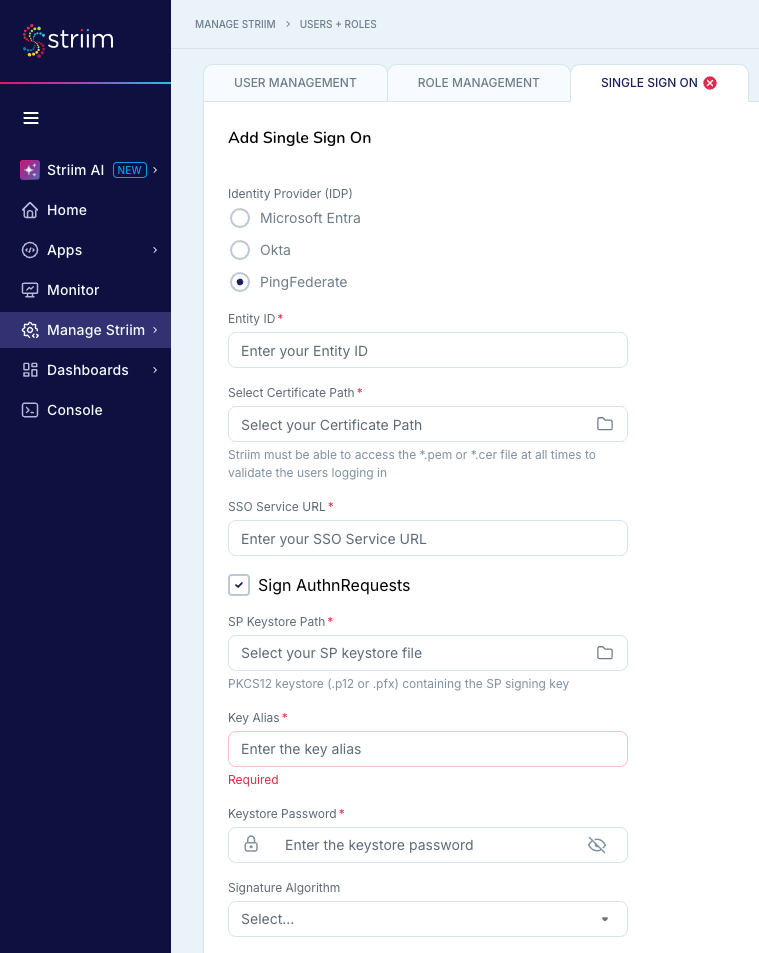
The key and password are stored in the secured SAML Vault. The signing section appears only when PingFederate is the selected IdP, and the stored password is shown masked and preserved on edit unless a new one is typed.
Step 3 — Configure PingFederate
Send
striim-sp.certo the IdP admin, along with the Entity ID and ACS URL.Add Striim's SP signing certificate to the SP connection's signature verification certificates.
Keep Require signed AuthnRequest enabled.
Confirm the IdP still signs the Response/Assertion; Striim verifies it via the existing IdP certificate.
Step 4 — Test
Open the Striim URL; you are redirected to PingFederate.
PingFederate accepts the signed AuthnRequest (no
Signature requirederror).Authenticate; the signed Response is posted to the ACS, Striim verifies it, and you are logged in.
Troubleshooting
The following table lists common error scenarios and the message shown to the user:
Scenario | Error shown to user | Resolution |
SSO is not configured | Please ensure the admin user has configured SSO! | An admin must complete the SSO Setup before users can log in with SSO. |
Certificate path is not set | Please ensure the certificate path is properly set in the SSO Setup before using Single Sign On! | Set the full filesystem path to the Ping signing certificate in SSO Setup. |
Certificate mismatch | Invalid certificate provided! Please contact your Striim Administrator! | Verify the certificate on the Striim server matches the current Ping signing certificate. Re-export the certificate from Ping if it has been rotated. |
Required attributes are missing from the SAML response | SAML response did not contain the required attributes (first name, last name, email). Please ensure your Identity Provider is configured to send these attributes. | Configure the |
SAML assertion validation fails | There was an issue while logging into Striim with SSO! Please contact your Striim Administrator! | Check the Striim server logs and confirm the SSO configuration (Entity ID, SSO Service URL, certificate) matches the Ping SP connection. |
SSO user account is deactivated | User does not exist, password is incorrect, or is deactivated | An admin must reactivate the user account in Striim. |
PingFederate rejects the login with | Login fails before authentication at the IdP. | PingFederate requires a signed AuthnRequest. Enable Sign AuthnRequests and configure the SP signing key pair (see Signed AuthnRequest support (PingFederate)). |
Certificate file moved or deleted after setup | SSO logins fail. | Restore the certificate at the configured path, or update the certificate path in SSO Setup. |