Configuring Clara AI
This topic explains how to configure the LLM provider and infrastructure that Clara uses in Striim Platform. You can use Striim-managed Clara AI Servers when that option is available, connect Clara to OpenAI or Google Gemini using your own provider credentials, or use Ollama when model processing must remain within infrastructure that you control.
Clara connects to the selected LLM provider through a Clara AI Agent. You can run the agent on the Striim host or deploy it on another host.
Choose a configuration
The following configuration paths are available:
Configuration | Clara AI Agent location | LLM provider | When to use |
|---|---|---|---|
Clara AI Servers | Striim-managed (hosted in the United States) | Striim-managed cloud LLM provider | Use this option to try Clara without configuring an AI provider account or API key. The option appears only when Clara AI Servers are available from your environment. |
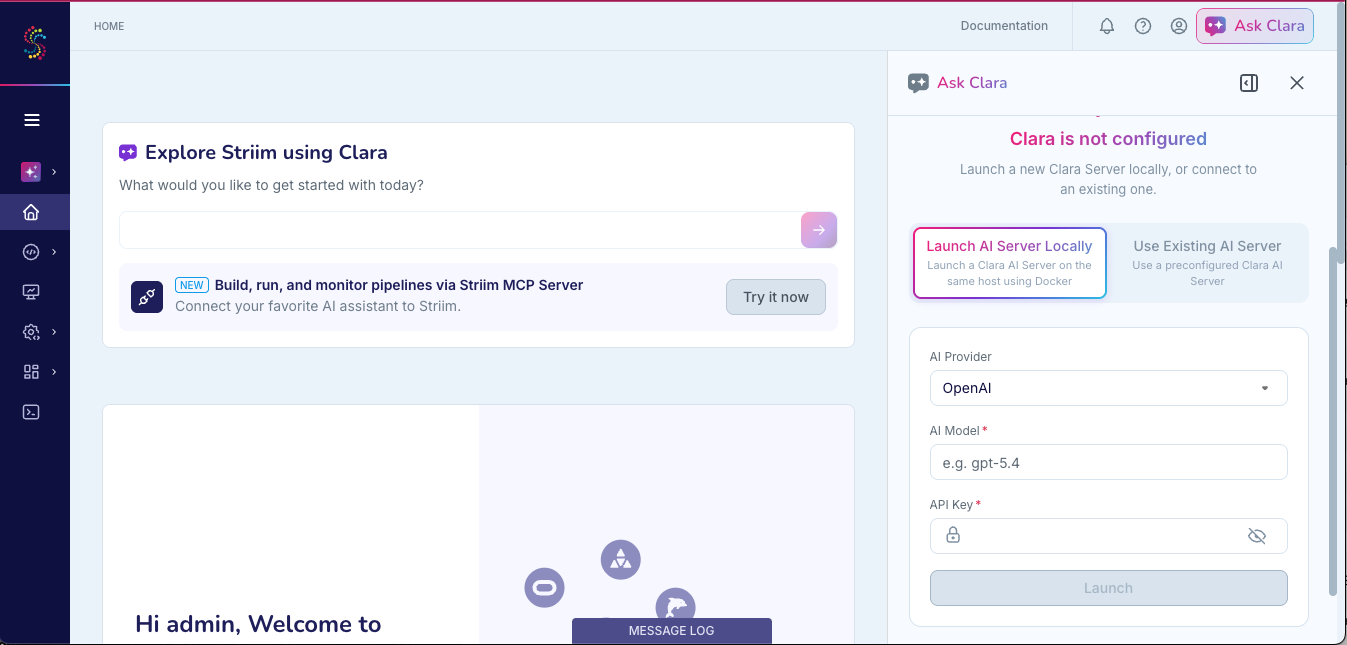
Launch AI Server Locally | Striim host | OpenAI, Google Gemini, or Ollama | Use this option when Docker is available on the Striim host and you want Striim to launch the Clara AI Agent using your provider configuration. |
Use Existing Server | Another host | OpenAI, Google Gemini, or Ollama | Use this option when you want to deploy and operate the Clara AI Agent separately from the Striim host. |
Supported models
Clara supports the following chat models:
Provider | Supported chat models |
|---|---|
Google Gemini |
|
OpenAI |
|
Ollama |
|
These are the models Striim has certified for use with Clara. Providers rename, deprecate, and add models over time, so a model identifier that Clara accepted previously may no longer resolve. For the current Google Gemini model names and their availability, see Gemini API / Models.
Note
Access to gemini-3.5-flash-cyber is limited. Google makes this model available to government and trusted partner organizations through CodeMender. If your provider account does not have access to it, select another supported Gemini model.
The Clara knowledgebase also requires an embedding model:
Provider | Supported embedding model |
|---|---|
Google Gemini |
|
OpenAI |
|
Ollama |
|
Provider availability, quotas, and model access depend on your provider account. See Configure Ollama for Clara for system requirements and setup instructions.
Use Clara AI Servers
Use the Striim-managed (hosted in the United States) Clara AI Servers when they are accessible from your Striim environment. This option lets you start Clara without configuring an LLM provider account.
Open Ask Clara.
Click Click here in the hosted-server prompt.
Review the Get Started with Clara confirmation.
Click Launch with Clara AI's Servers.
Striim connects Clara to the hosted service. You do not need an AI provider account or API key.
When you use the Striim-managed Clara AI Servers, messages are not used for model training. Messages may be transmitted to Striim's cloud LLM provider partners to provide the Clara service.
If Striim-managed Clara AI Servers are not accessible
Use Launch AI Server Locally to run the Clara AI Agent on the Striim host, or use Use Existing Server to connect to an agent that you deploy on another host. The following sections describe these options.
Launch a Clara AI Agent locally on the Striim host
Use Launch AI Server Locally to run the Clara AI Agent on the same host as Striim Platform.
Before you begin
Install and start Docker on the Striim host.
Obtain your own API key for OpenAI or Google Gemini. Striim does not provide API keys for use with OpenAI or Google Gemini.
For Ollama, verify that the Ollama endpoint is reachable from the Striim host.
Launch the agent
Open Ask Clara.
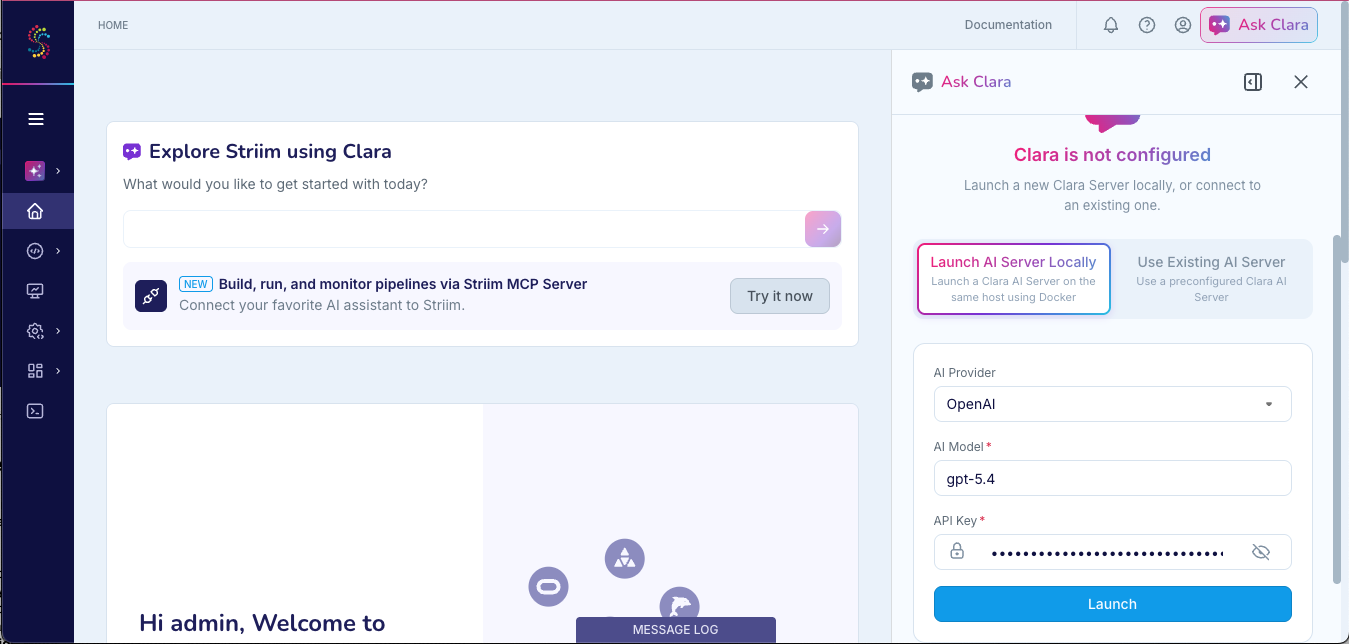
Select Launch AI Server Locally.
Select OpenAI, Gemini, or Ollama from AI Provider.
Enter a supported chat-model identifier in AI Model.
For OpenAI or Google Gemini, enter your provider key in API Key.
Click Launch.
The Launch button remains disabled until all required fields are complete. Striim starts the Clara AI Agent containers and connects the Ask Clara panel to the configured backend.
Deploy a Clara AI Agent on another host
Use Use Existing Server when you want to run the Clara AI Agent on a host separate from Striim Platform.
Prepare the remote host
The remote host must have:
Docker and Docker Compose.
Network access to
artifacts.striim.com.Network connectivity to Striim Platform and the selected LLM provider.
TCP port 9090 reachable from the browser or client that opens Clara.
The supplied
striim-ai/docker-compose.ymlfile.Credentials for the Striim artifact registry.
Copy the Compose file
Copy the supplied Compose file to the remote host:
scp striim-ai/docker-compose.yml <user>@<remote-host>:~/striim-ai/
Log in to the Striim artifact registry
On the remote host, run:
docker login artifacts.striim.com --username <cluster-name>
Enter the Striim product key at the password prompt. Do not place the product key directly in a command or script.
Configure the chat model
Configure the following environment variables:
Variable | Required | Default | Description |
|---|---|---|---|
| Yes |
| Provider identifier: |
| OpenAI and Google Gemini | None | API key for the cloud AI provider. |
| Yes | None | Supported chat-model identifier. |
| Ollama or a custom self-hosted endpoint | None | Base URL of the model endpoint. |
Configure the embedding model
The embedding model is required when ENABLE_KNOWLEDGEBASE=true. If you omit an embedding-provider setting, Clara uses the corresponding chat-provider setting. EMBEDDING_MODEL does not have a fallback and must be set explicitly.
Variable | Required | Default | Description |
|---|---|---|---|
| Optional | Value of | Provider identifier: |
| When different from the chat-provider key | Value of | API key for the embedding provider. |
| When the knowledgebase is enabled | None | Supported embedding-model identifier. |
| For an Ollama embedding endpoint | Value of | Base URL of the embedding endpoint. |
Configure the knowledgebase and agent connection
Variable | Required | Default | Description |
|---|---|---|---|
| No |
| Set to |
| When the Qdrant service requires a key | None | Key for a secured Qdrant service. |
| Yes | None | Random UUID used to secure the Clara AI Agent UI service. |
| Yes | None | Base URL of the Striim Platform host, such as |
Start the Clara AI Agent
The following example configures the agent to use OpenAI. Replace each placeholder and use a model supported by your provider.
export AI_PROVIDER=openai
export AI_API_KEY=<provider-api-key>
export AI_MODEL=gpt-5.4-nano
export EMBEDDING_MODEL=text-embedding-3-small
export COPILOT_TOKEN=<random-uuid>
export STRIIM_BASE_URL=http://<striim-platform-host>:9080

docker compose -f ~/striim-ai/docker-compose.yml up -d
Use your organization's secret-management mechanism to supply provider keys and tokens in production environments.
Verify the remote deployment
Run the following commands on the Clara AI Agent host:
docker compose -f ~/striim-ai/docker-compose.yml ps
docker compose -f ~/striim-ai/docker-compose.yml logs striim-ai-agent
curl http://localhost:8001/health
The health endpoint is available at http://localhost:8001/health. The Clara UI is available at http://<remote-host>:9090.
Connect Striim to the remote agent
Open Ask Clara.
Select Use Existing Server.
Enter
http://<remote-host>:9090/do/aiin Clara Server URL.Click Connect.
A green confirmation banner indicates that Clara is connected and ready. You can update the configuration at any time by returning to this panel.
Configure Ollama for Clara
Use Ollama when your security or governance requirements call for model processing to remain within infrastructure that you control. The Ollama host can run in AWS, Google Cloud, Microsoft Azure, or another environment that meets the system and network requirements.
Ollama considerations
The supported configuration uses qwen3.6:35b for chat and completion and nomic-embed-text for embeddings. This configuration supports documentation search and basic cluster operations.
Model quality, response time, and reliability depend on the available GPU memory, context length, concurrency, and workload.
Ollama system requirements
Provision an Ollama host that meets the following requirements:
A single NVIDIA GPU with at least 48 GB of VRAM.
An Ubuntu or Ubuntu-compatible image with a working NVIDIA driver and CUDA environment.
At least 200 GB of SSD-backed storage for the operating system, models, and model cache.
TCP port 11434 reachable from the Clara AI Agent host and blocked from the public internet.
Network access to install Ollama and download the supported models.
The supported chat model requires approximately 23 GB of storage and approximately 25 GB of GPU memory when loaded. Additional GPU memory is required for context and concurrent requests.
The following cloud instances provide starting configurations for an Ollama host:
Cloud | Instance | GPU capacity | Guidance |
|---|---|---|---|
AWS |
| One NVIDIA L40S, 48 GB | Validated with the supported Clara models. |
AWS |
| Eight NVIDIA A100 GPUs, 40 GB each | Higher concurrency headroom. |
AWS |
| One NVIDIA H100 GPU, 80 GB | Higher concurrency headroom. |
Google Cloud |
| One NVIDIA A100, 80 GB | Meets the capacity requirement. Validate with your expected Clara workload. |
Microsoft Azure |
| One NVIDIA A100, 80 GB | Meets the capacity requirement. Validate with your expected Clara workload. |
Microsoft Azure |
| Two NVIDIA A100 GPUs, 80 GB each | Higher concurrency headroom. |
Instance availability, quotas, and pricing vary by region and account. Confirm current capacity with the cloud provider before provisioning.
Plan for context and concurrency
Ollama allocates additional GPU memory as concurrency and context length increase:
OLLAMA_NUM_PARALLELcontrols the number of requests Ollama can process concurrently for each loaded model.OLLAMA_CONTEXT_LENGTHsets the default context window when a request does not specify one.
Required GPU memory increases approximately with the number of parallel requests multiplied by the configured context length. Provision capacity for the expected number of concurrent Clara users and load-test the configuration while monitoring GPU memory with nvidia-smi.
Provision the Ollama host
Select an official vendor-maintained GPU image with NVIDIA drivers and CUDA installed. Use the following table to resolve the current image version rather than hardcoding an image ID.
Cloud
Official image
How to resolve the latest version
AWS
AWS Deep Learning Base GPU AMI (Ubuntu 22.04)
/aws/service/deeplearning/ami/x86_64/base-oss-nvidia-driver-gpu-ubuntu-22.04/latest/ami-idGoogle Cloud
Deep Learning VM Images (Ubuntu-based, CUDA preinstalled)
Use
gcloud compute images list --project=ml-images --filter="family~common-cu.*ubuntu"and select the latestcommon-cu12x-ubuntu-2204family.Microsoft Azure
Data Science Virtual Machine (Ubuntu) or the Ubuntu-HPC marketplace image
Use
az vm image list --publisher microsoft-dsvm --offer ubuntu-hpc --all --output tableand select the latest SKU.Select an instance that meets the GPU-memory requirement.
Allocate at least 200 GB of SSD-backed storage.
Place the instance on a network that the Clara AI Agent can reach.
Allow inbound TCP traffic on port 11434 only from the Clara AI Agent host or its trusted security group, subnet, or network tag.
Install and configure Ollama
Connect to the Ollama host and verify that the GPU driver is active:
nvidia-smi
Install Ollama:
curl -fsSL https://ollama.com/install.sh | sh
Create a systemd override:
sudo mkdir -p /etc/systemd/system/ollama.service.d
sudo tee /etc/systemd/system/ollama.service.d/override.conf > /dev/null <<'EOF'
[Service]
Environment="OLLAMA_HOST=0.0.0.0"
Environment="OLLAMA_NUM_PARALLEL=4"
Environment="OLLAMA_CONTEXT_LENGTH=8192"
Environment="OLLAMA_KEEP_ALIVE=-1"
EOF

sudo systemctl daemon-reload
sudo systemctl restart ollama
sudo systemctl enable ollama
The configuration uses the following settings:
Setting | Effect | Operational consideration |
|---|---|---|
| Listens on all host network interfaces. | Restrict access with private networking, security groups, and firewall rules. |
| Allows up to four parallel requests for each loaded model. | Increase only after confirming that sufficient GPU memory remains available. |
| Sets the default context window. | Larger values use more GPU memory. Test advanced Clara tasks with the selected value. |
| Keeps models loaded in GPU memory. | Reduces cold-start delay but reserves GPU memory while the service runs. |
Download the supported models
ollama pull qwen3.6:35b
ollama pull nomic-embed-text
Verify Ollama
Test chat generation:
curl http://localhost:11434/api/generate -d '{
  "model": "qwen3.6:35b",
  "prompt": "Say hello world",
  "stream": false,
  "think": false
}'
Test embeddings:
curl http://localhost:11434/api/embeddings -d '{
  "model": "nomic-embed-text",
  "prompt": "hello"
}'
Confirm model and GPU status:
nvidia-smi --query-gpu=memory.used,memory.total --format=csv
ollama ps
From the Clara AI Agent host, verify that the Ollama endpoint is reachable:
curl http://<ollama-private-ip>:11434/api/tags
An HTTP 200 response that lists both models confirms that the network rule and OLLAMA_HOST setting allow the Clara AI Agent to reach Ollama.
Connect the Clara AI Agent to Ollama
Use the following values when you configure the Clara AI Agent:
Variable | Value |
|---|---|
|
|
|
|
|
|
|
|
|
|
|
|
Restart the Clara AI Agent after changing its provider configuration and then verify the connection from Ask Clara.
Operational considerations for Ollama
Keep port 11434 private and allow access only from the Clara AI Agent host.
Monitor GPU memory, queueing, response time, and model availability under representative concurrent load.
Keep the supported models resident with
OLLAMA_KEEP_ALIVE=-1when consistent response time is more important than releasing GPU memory.Re-run the verification tests after an Ollama update, model update, GPU-driver update, or instance-type change.
Validate documentation search, operational queries, and application-building tasks separately because their context and resource requirements differ.
Increase context or concurrency only after confirming that the models remain fully loaded on the GPU.
Limitations
Ollama models typically have a smaller context window than OpenAI and Google Gemini models. This can affect the performance and behavior of advanced tools, such as Application Builders. Basic cluster operations and documentation searches are supported.
When you use smaller models, Clara responses can be slower and less accurate, particularly for advanced tools.
After configuration
After Clara connects successfully, a green confirmation banner appears in the Ask Clara panel.
When the knowledgebase is enabled, Clara builds its documentation index in the background after the initial configuration. Initialization typically takes up to 10 minutes. You can use other Clara capabilities while initialization is in progress, but documentation-search results may be incomplete.
Troubleshooting
Clara reports an invalid provider configuration
Symptom: Clara reports that the AI provider configuration is invalid or the provider rejects the credentials.
Resolution:
Verify the selected provider and model identifier.
Confirm that the provider account has access to the model and sufficient quota.
Re-enter API Key and AI Model.
Click Launch again.
The provider reports that the model was not found
Symptom: Clara reports that the chat model is unavailable, and the agent log records a 404 NOT_FOUND response from the provider.
Resolution: The provider has renamed or retired the model. Check the provider's current model list, then enter the current identifier in AI Model or in AI_MODEL. For Google Gemini, see Gemini API / Models.
Clara cannot reach the Clara AI Agent
Symptom: Clara is configured, but the Ask Clara panel cannot reach the agent.
Resolution:
Verify that the Clara AI Agent containers are running.
Verify the configured Clara Server URL.
Confirm that port 9090 is reachable from the browser or client.
For a remote deployment, review the
striim-ai-agentcontainer logs.
Ollama cannot load the chat model
Symptom: The supported chat model does not load or the Ollama process stops under load.
Resolution:
Confirm that the GPU has at least 48 GB of VRAM.
Verify available GPU memory with
nvidia-smi.Reduce
OLLAMA_NUM_PARALLELorOLLAMA_CONTEXT_LENGTHif the base model loads but the process exhausts memory under concurrent use.
The Clara AI Agent cannot reach Ollama
Symptom: A request to the Ollama endpoint returns a connection error.
Resolution:
Confirm that the Ollama service is running.
Verify that
OLLAMA_HOSTallows network connections.Confirm that port 11434 is allowed from the Clara AI Agent host.
Run
curl http://<ollama-private-ip>:11434/api/tagsfrom the Clara AI Agent host.
Documentation-search results are incomplete
Symptom: Clara can respond, but documentation-search results are missing or incomplete shortly after setup.
Resolution: Allow up to 10 minutes for the initial knowledgebase index to finish building. If the issue continues, verify that ENABLE_KNOWLEDGEBASE=true and that the embedding model is configured.
Security considerations
Apply your organization's AI, data-handling, access-control, network-security, and change-management policies.
Treat provider API keys, product keys, tokens, and other credentials as secrets.
Review the security, privacy, retention, regional, and usage policies of a cloud AI provider before connecting Clara to it.
Restrict access to remote Clara AI Agent and Ollama endpoints to trusted networks and systems.
Do not expose Ollama port 11434 to the public internet.
Review generated TQL and proposed changes before execution and verify the result after Clara performs an action.
Use Ollama when your policy requires model processing to remain within infrastructure that you control.