Initial setup for Stripe Reader
Before building a pipeline, complete authentication setup in Stripe and (optionally) create a Striim connection profile. The Stripe Reader supports OAuth and API key authentication. Configure OAuth in the wizard, or generate an API key in Stripe and reference it from Striim (directly or via a connection profile).
Generating a Stripe API key
The following procedure determines the API key for later use in Stripe Reader configuration.
Log in to Stripe.
The Stripe account home page appears.
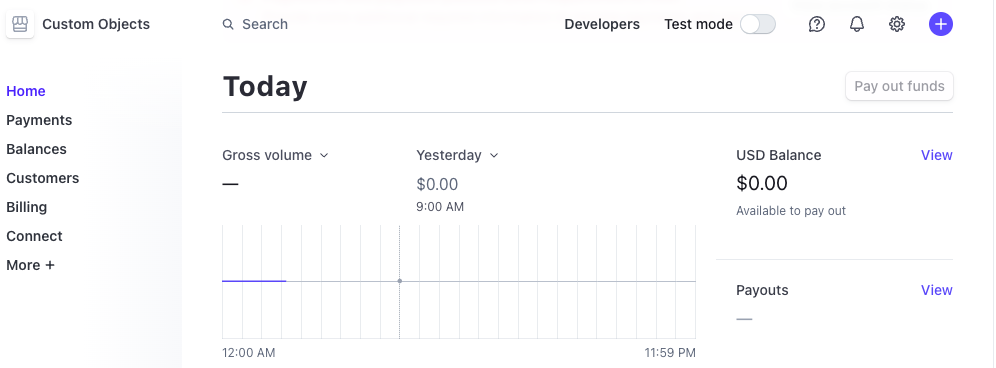
Click Developers.
The Stripe Developer page appears.
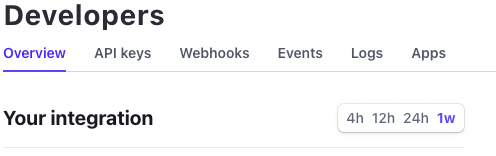
Click API keys.
The API keys tab appears.
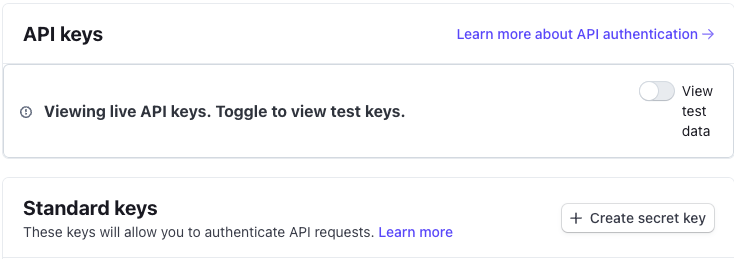
Click Create secret key, then re-authenticate to Stripe.
You can also use a restricted key by clicking Create restricted key. Restricted keys are API keys that have an assigned set of permissions.
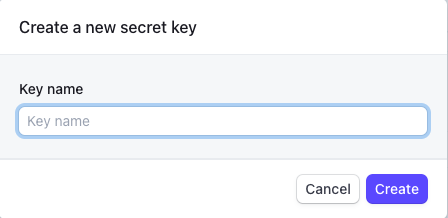
Type a name for the secret key and click Create.
Stripe displays the API key. Copy this key to the clipboard and store it securely, then click Done.
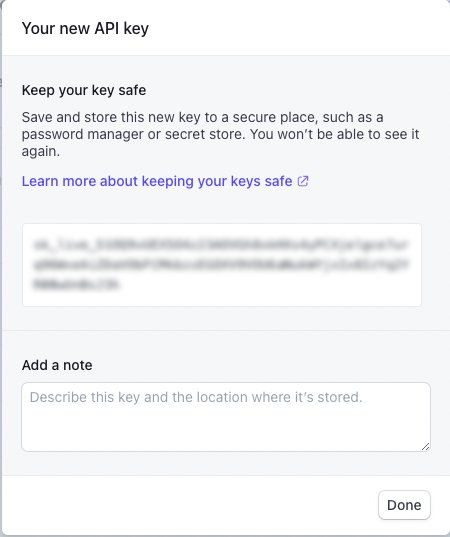
To authenticate with an API key, first generate the API key in Stripe, then launch the Stripe Reader to BigQuery wizard and use the API key during configuration.
Configuring a Striim connection profile
A connection profile lets you reuse Stripe credentials across multiple applications and hide sensitive details from component property panels.
In the Striim UI, go to Admin > Connection Profiles and click Create Connection Profile.
Provide a Name and optional Description. Select Source and choose Stripe Reader as the adapter type.
Choose an authentication method:
OAuth: Enter Client ID, Client Secret, and Refresh Token. Save the profile.
API key: Paste the API key. If you read from a connected account, also provide the Account ID. Save the profile.
When creating a Stripe Reader source, set Use connection profile to
Trueand select the profile by its Connection profile name. Password properties on the reader are hidden and ignored.